
 Happy New Year, and welcome to 2024! For many of us, starting a new year means reflecting on fresh habits we’d like to adopt. Although we support any resolutions you may have made to get enough sleep, eat better, exercise more, and reduce social media usage, allow us suggest a few more that will improve your digital security and reduce the chances that bad things will happen to you online.
Back Up All Your Devices
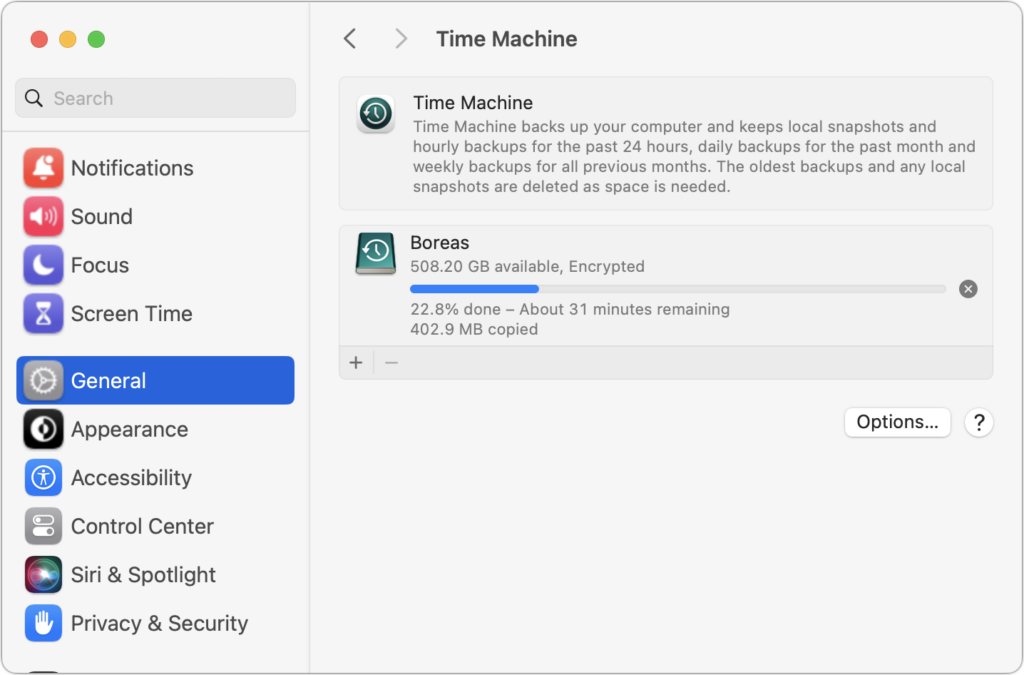
The most important thing you can do to stave off the slings and arrows of digital doom is to make regular backups. Bad things happen to good people, such as a Mac’s SSD failing, an iPhone accidentally falling off a boat, an Apple Watch breaking in a fall, or loss due to theft, fire, or flood. With a good backup strategy, you can recover from nearly any problem.
For the Mac, it’s easiest to back up with Time Machine to an external drive, but remember that an offsite or Internet backup is also essential. With iPhones and iPads, it’s easiest to back up to iCloud, which happens every night automatically if you turn it on in Settings > Your Name > iCloud > iCloud Backup, but you can also back up to your Mac if you don’t have sufficient iCloud storage space. Apple Watches automatically back up to their paired iPhones, so if you protect your iPhone, you can always restore your Apple Watch.
Keep Your Devices Updated
Another key thing you can do to protect your security is to install new operating system updates and security updates soon after Apple releases them. Although the details seldom make the news because they’re both highly specific and highly technical, you can get a sense of how important security updates are by the fact that a typical update addresses 10–30 vulnerabilities that Apple or outside researchers have identified. Some are even zero-day vulnerabilities that are already being exploited in the wild.
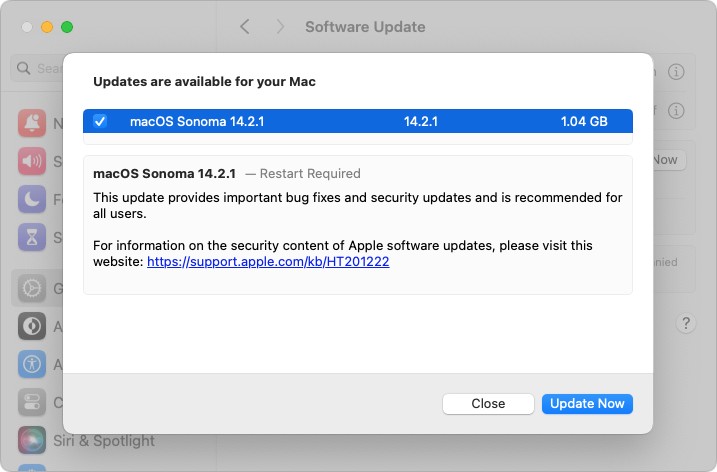
It’s usually a good idea to wait a week or so after an update appears before installing, on the off-chance that it has undesirable side effects. Although such problems are uncommon, when they do happen, Apple pulls the update quickly, fixes it, and releases it again, usually within a few days.
Use a Password Manager
We’ll keep banging the password manager drum until passkeys, the replacement for passwords, have become ubiquitous, which will take years. Until then, if you’re still typing passwords in by hand or copying and pasting from a list you keep in a file, please start using a password manager like 1Password or BitWarden. Even Apple’s built-in password manager and iCloud Keychain are fine, if not as fully featured as the others. A password manager offers five huge benefits:
- It generates strong passwords for you. Mypassword1 can be hacked in seconds.
- It stores your passwords securely. An Excel file on your desktop is a recipe for disaster.
- It enters passwords for you. Wouldn’t that be easier than typing them in manually?
- It audits existing accounts. How many of your accounts use the same weak password?
- It lets you access passwords on all your devices. Finally, easy logins on your iPhone!
A bonus benefit for families is password sharing. It allows couples to share essential passwords or parents and teens to share specific passwords.
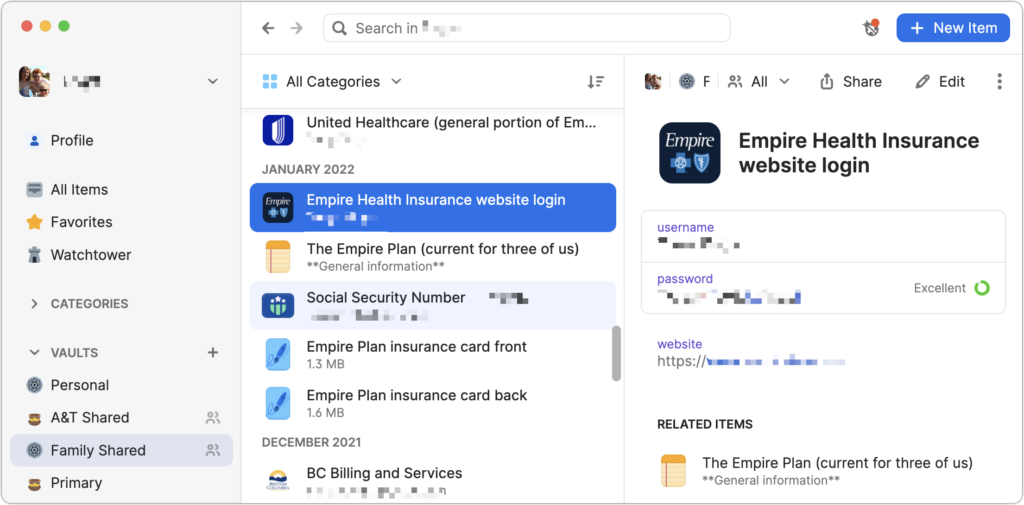
Using a password manager is faster, easier, more secure, and better. If you need help getting started, get in touch.
Beware of Phishing Email
Individuals and businesses frequently suffer from security lapses caused by phishing, forged emails that fool someone into revealing login credentials, credit card numbers, or other sensitive information. Although spam filters catch many phishing attempts, you must always be on guard. Here’s what to watch for:
- Any email that tries to get you to reveal information, follow a link, or sign a document
- Messages from people you don’t know, asking you to take an unusual action
- Direct email from a large company for whom you’re an anonymous customer
- Forged email from a trusted source asking for sensitive information
- All messages that contain numerous spelling and grammar mistakes
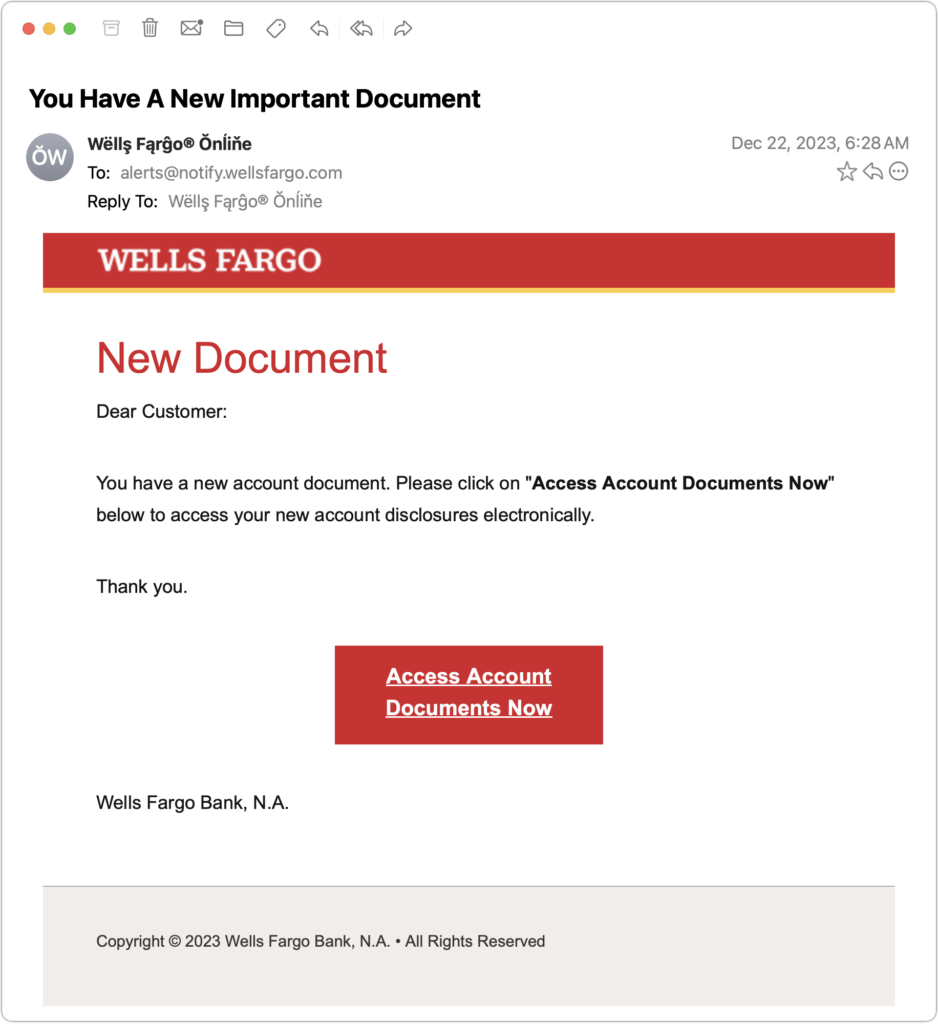
When in doubt, don’t follow the link or reply to the email. Instead, contact the sender another way to see if the message is legit.
Never Respond to Unsolicited Calls or Texts
Although phishing happens mostly via email, scammers also use texts and phone calls. Thanks to weaknesses in the telephone system, such texts and calls can appear to come from well-known companies, including Apple and Amazon. Even worse, with so much online ordering, fake text messages pretending to help you track packages are becoming more common.
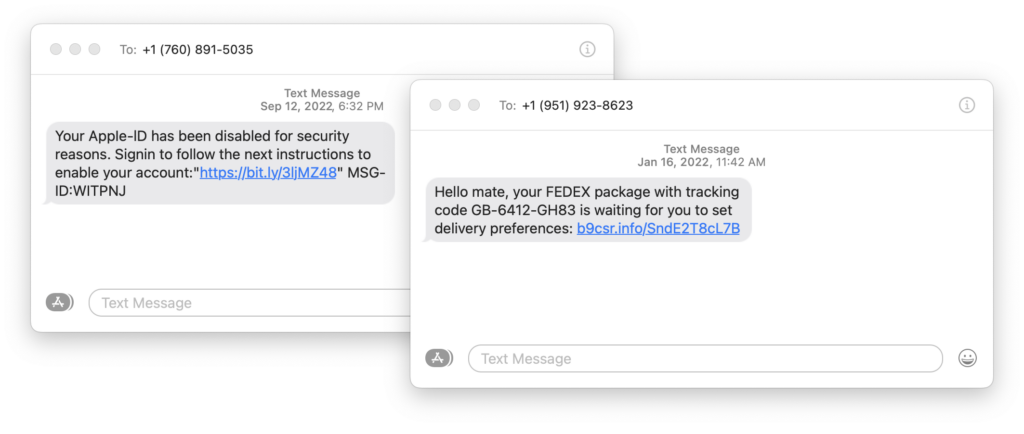
For texts, avoid following links unless you recognize the sender and it makes sense that you’d be receiving such a link. (For instance, Apple can text delivery details related to your orders.) Regardless, never enter login information at a site you’ve reached by following a link because there’s no way to know if it’s real. Instead, if you want to learn more, manually navigate to the company’s site by entering its URL, then log in.
For phone calls from companies, unless you’re expecting a call back from a support ticket you opened, don’t answer. Let the call go to voicemail, and if you feel it’s important to respond, look up the company’s phone number elsewhere and talk with someone at that number rather than the one provided by the voicemail.
Avoid Sketchy Websites
We won’t belabor this last one, but suffice it to say that you’re much more likely to pick up malware from sites on the fringes of the Web or that cater to the vices of society. The more you can avoid sites that revolve around pirated software, cryptocurrency, “adult” content, gambling, or sales of illicit substances, the safer you’ll be. That’s not to say that reputable sites haven’t been hacked and used to distribute malware, but it’s far less common.
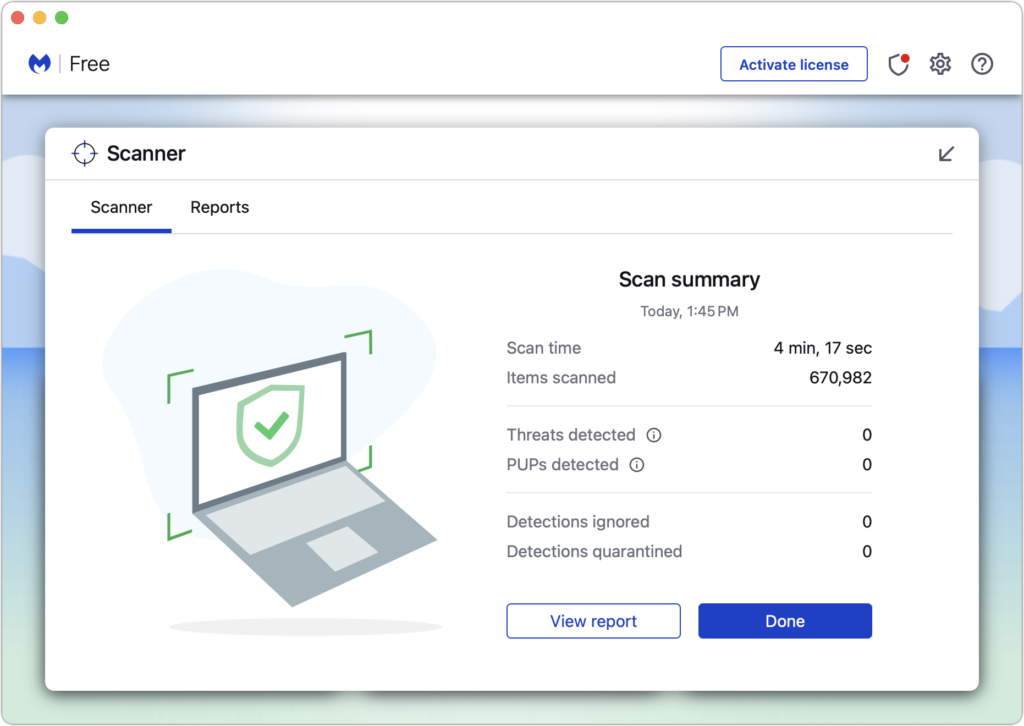
If you are concerned after spending time in the darker corners of the Web, download a free copy of Malwarebytes or VirusBarrier Scanner and scan for malware manually.
Let’s raise a glass to staying safe online in 2024!
(Featured image by iStock.com/Bet_Noire)
Social Media: Get ready for a safer 2024 with New Year’s resolutions that will help you secure your devices, avoid scams, block malware, and enjoy the security and ease of use of password managers.
