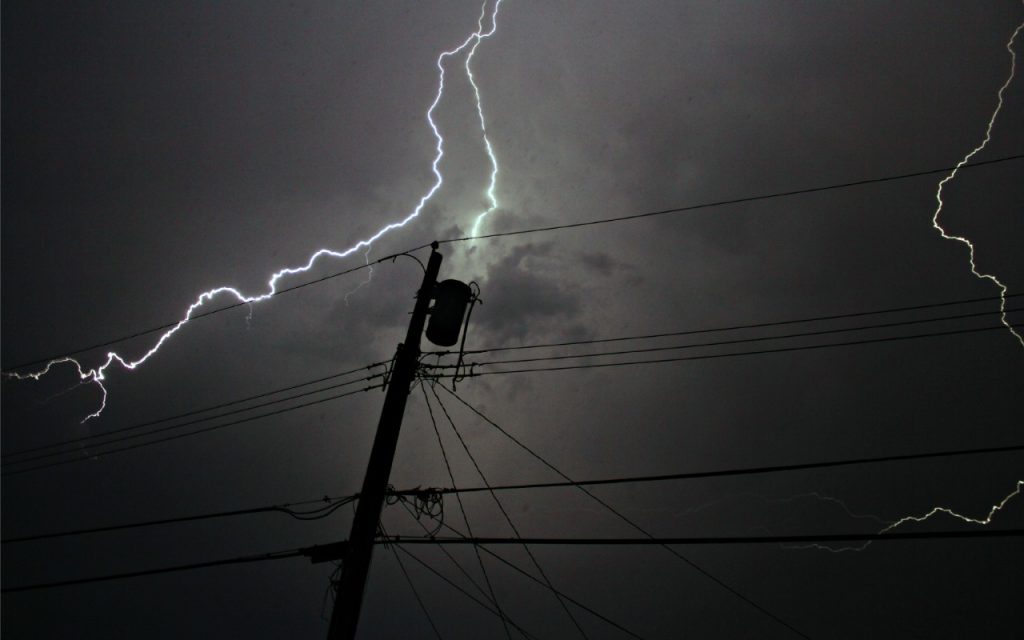
It has been a tough year for extreme weather events. While the connection between weather and technology may seem tenuous, heat waves, high winds, and lightning strikes can play havoc with all sorts of powered and networked electronic devices.
Anything that causes power fluctuations—spikes, surges, sags, brownouts, and blackouts—can hurt your tech gear. Protecting your most vulnerable devices doesn’t have to be expensive, but don’t be complacent because you plug your Mac into a cheap surge protector you’ve had since college. And note that many power strips offer no surge protection at all.
First off, why are power fluctuations problematic? There are two scenarios:
- Too little power: Sags and brownouts are drops in voltage; a sag is a short-term dip, whereas brownouts last longer. Blackouts are complete power outages. Although they’re less damaging than surges, sags and brownouts can cause electronic devices to behave erratically or crash, and the fluctuation in voltage—particularly when coming back from an outage—can stress components. Losing power entirely will cause you to lose any unsaved work and possibly end up with document or even drive corruption.
- Too much power: Spikes and surges are sudden, brief increases in voltage; the difference is that spikes are shorter than surges. Either way, the excessive power can degrade or damage sensitive electronic components, reducing lifespan or causing immediate failures.
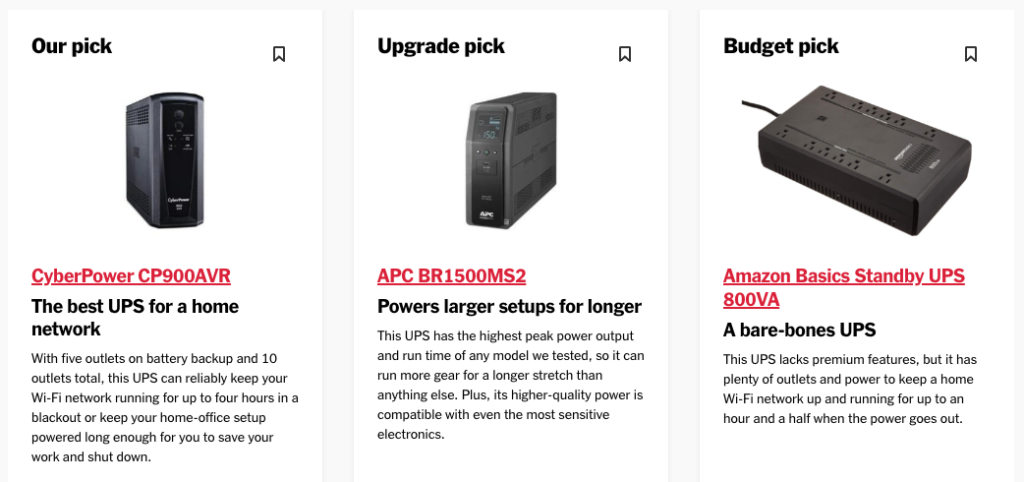
The best solution to these scenarios is an uninterruptible power supply (UPS). Put simply, a UPS is a big battery into which you plug your Mac and other peripherals. It then plugs into a wall outlet and monitors the incoming power. If the power surges, falls below a certain threshold, or fails outright, the UPS switches the power source to its internal battery. This happens so quickly that your Mac never even notices.
If your gear is plugged into a UPS when a blackout hits, you get some time to save your work and shut down gracefully, ensuring that you don’t lose data or flirt with drive corruption. A UPS also protects against spikes and surges, filtering out the excess voltage so it can’t harm the devices plugged into it. The downsides to UPSes are that they’re an extra expense, their batteries need replacing every few years, and they take up space under your desk. For a home or small office UPS, consult Wirecutter’s recommendations. For larger installations, contact us.
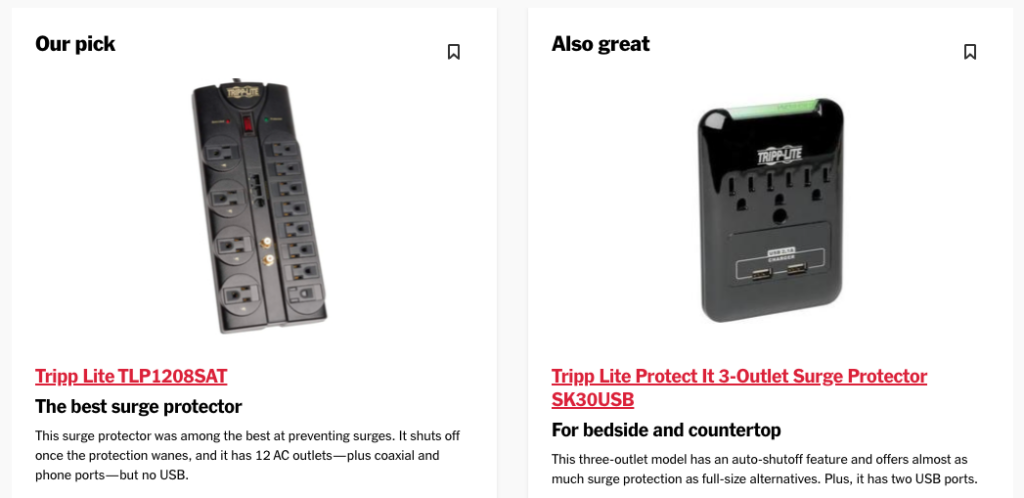
If power outages are rare in your location, you may prefer to rely on a surge protector instead of a UPS. As the name implies, surge protectors filter out voltage spikes and surges so they won’t damage your gear. Surge protectors are smaller and less expensive than UPSes, and while they don’t have batteries to fail, their protection circuitry degrades over time, so they should be replaced every few years as well. Better surge protectors alert you or stop working entirely when they can no longer provide protection. Again, Wirecutter has good recommendations.
If most of your expensive tech gear is battery-powered, you could forgo even a surge protector. Outages aren’t an issue, and a MacBook or iPhone power adapter will protect against most sags, brownouts, spikes, and surges. The power adapter may incur damage, but it’s inexpensive to replace.
One final thought. No UPS, surge protector, or power adapter can protect against a direct lightning strike. Lightning is too fast and too powerful—it’s millions or even hundreds of millions of volts. Even turning your equipment off isn’t sufficient because lightning that has traveled miles through the air to hit the ground can easily jump across an open switch. If lightning strikes are common in your area, unplug your most expensive devices entirely during severe storms.
To sum up:
- For a desktop Mac and peripherals, a UPS is a worthwhile investment if you ever suffer from power outages. Also, consider a UPS for essential networking gear—cable modems, routers, switches, and network-attached storage.
- If power outages are extremely rare, or for equipment that doesn’t need to remain on during an outage, get a good surge protector. If it doesn’t automatically disable itself when it’s no longer effective, write the date on the bottom and replace it in a few years.
- Although there’s no harm in doing so, it’s not necessary to plug battery-powered device chargers into a surge protector or UPS. A spike or surge may damage them, but they’ll probably sacrifice themselves to protect your gear.
- When in doubt during severe storms, unplug your most valuable equipment to protect against a direct lightning strike.
(Featured image by iStock.com/HardRockShotz)
Social Media: How can you protect your tech gear from unexpected power fluctuations? A UPS is best in some scenarios, but a not-too-old surge protector is often sufficient. You can also let your Apple chargers do their job without worrying about what they are plugged into.