
By Chris Keller|Dec 06, 2022

We recently wrote about different ways to organize your files, which prompted some people to ask us about the best ways to manage email. Email may have competition from messaging services like Slack and Microsoft Teams, but for many people, it’s still where the most important communications take place. That’s especially true for anyone who has to work with numerous people outside their organization—there’s a reason why business cards nearly always contain an email address.
As with file organization, how you manage and organize your email is all about mak-ing it easier to find a specific message or conversation later. The big difference be-tween files and email is that you usually care about how other people will be able to find and work with your files. With email, however, you’re the only person who has to sort through your messages. Imagine you run an ad agency that has the Belvedere Hotel as a client—your organizational structure for files needs to work for all your colleagues, but no one but you needs to find your email message about what should change in the next print ad campaign.
When managing email so you can find what you want later, most people gravitate to filing messages in mailboxes (sometimes called folders) or searching, though we find that a combination is usually best.
Find Email in Mailboxes
Many people have traditionally used a hierarchical filing structure to organize their email, creating a mailbox for each project. (There’s generally little benefit in creating mailboxes for people or date ranges because it’s easy to search for messages from specific people or between certain dates.)
So, much as with files, you might have a top-level mailbox for Clients and a sub-mailbox for each client, including the Belvedere Hotel. You could make additional sub-mailboxes for different Belvedere Hotel projects, but unless you expect to re-ceive a lot of email for each of those projects, increasing the depth of the hierarchy is often unnecessary and extra work.
It’s unnecessary because date sorting options usually make it easy to home in on the message you want even when the mailbox contains hundreds of messages. Plus, the more granular your filing approach, the more manual filing you’ll have to do to en-sure that every message ends up in the right place. Worse, many messages will likely cross projects, as could happen in a discussion of a print ad when your contact men-tions that they want to reuse the text and graphics in the next email blast too. Should it go in a Print Ads mailbox or an Email Blasts mailbox? Don’t waste time deciding—just leave it in a general Belvedere Hotel mailbox.
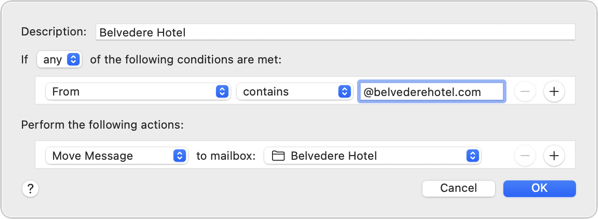
How do messages end up in these mailboxes? You can always file messages manual-ly, and you’ll spend some time doing that, no matter what. However, whenever pos-sible, you want to create rules (also known as filters) that file messages automatical-ly. Rules look through every incoming message and take actions—including moving to a mailbox—on messages that match the criteria you specify. For sanity’s sake, you want to make your rules as general as possible.
For instance, you could make a rule that moved messages from your contact at the Belvedere Hotel to your associated mailbox. That would work initially, but it would fail if you regularly work with multiple people there or if someone else fills in while your contact is on vacation. So instead of creating a rule that looks for a specific email address or even a set of email addresses, set your rule to look for all messages from the belvederehotel.com domain.
Let’s assume a colleague asks you for details on the latest Belvedere Hotel print ad. How do you find that information? Here’s how we’d go about it:
• Open the Belvedere Hotel mailbox, sort by date if necessary, and scroll through the list of recent messages. Most of the time, the message you need to find has arrived recently, and you’ll remember the sender and subject well enough to pick it out.
• If you can’t identify the message quickly by scanning, search for it based on the sender or recipient, date, and keywords. Look first within the mailbox where you think the message is located, but if that fails, broaden the search to all your mailboxes.
The reason to start with a scan of the mailbox is that it’s usually the most efficient. However, if you know a message is old or can’t remember the sender, you may be better off starting with a search.
If you can’t easily build rules to move most of your email into the appropriate mail-boxes, that’s a hint that a search-first approach might work better for you. You shouldn’t be spending a lot of your time filing email—that’s what computers are for!
Search for Email
When Google launched Gmail in 2004, the company introduced a new way of manag-ing email that leveraged the company’s strength in search. The subsequent populari-ty of Gmail—which now has over 1.8 billion active users worldwide—means that a great number of people now default to searching when they want to find particular email messages, regardless of which email service they use.
A search-first approach can be fast and effective and doesn’t require that you file messages into mailboxes. For instance, if you always get email about Belvedere Ho-tel ad campaign details from the same person, it may be faster to search for email from that person first, rather than looking through a mailbox.
Searching rather than browsing for email works best for people whose work doesn’t break down neatly into categories or regularly cuts across multiple projects. But it’s not for everyone. For a search-first approach to be effective:
• You must have the sort of brain that remembers details to use as search terms. If you’re more in the “I know it when I see it” camp, you may find searching less effective.
• Your email must contain sufficiently unusual keywords that searching for a person and a keyword or two is likely to find the message you want.
• You have to keep most messages. That may seem obvious, but if you delete a lot of incoming messages, you’ll likely remember messages you won’t be able to find.
• Your email app must search quickly and accurately. Gmail is the gold standard, but other email apps have decent search capabilities.
Although we’re all familiar with searching in Google—and if you like searching the Web, you’ll probably like searching your email—a few tricks will make your email searches more likely to succeed:
• Start with a focused search term—usually a person or unique keyword—that’s the most likely to give you the smallest number of results to scan for the mes-sage you want.
• When searching for a person’s name, if your email app offers to autocomplete to that person’s email address, let it. This is because searching for “smith” is much less likely to work well than “johnqsmith1999@example.com.”
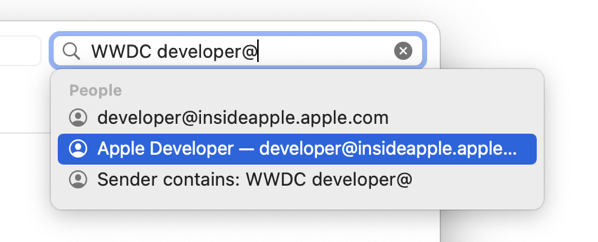
• You can specify whether the person for whom you’re searching was the sender or the recipient, which helps reduce the number of results for people who ap-pear regularly in your email.
• If you’re looking for an attached file, you can usually specify that your search should return only messages that contain attachments, perhaps even just spe-cific file types.
• When you can’t remember much about the contents of the desired message, try to remember surrounding details, such as when the message might have been sent or who else might have received it, and add those terms to your search.
Precisely how you formulate these searches will vary by email app, but check these pages for details on using Mail, Outlook, and Gmail.
Choose the Best of Both Worlds
In reality, neither solely browsing through mailboxes nor relying entirely on search is likely to be satisfying. Those who file everything will find themselves needing to search within mailboxes at times, and those who prefer searching may find that us-ing rules to store easily identified messages in associated mailboxes (mailing lists, for instance, or all email from your organization’s domain) makes searching easier.
(Featured image by iStock.com/anyaberkut)
——————————————————–
Social Media: What’s the best way to manage your email so you can find specific messages later? There is no right answer, but filing messages in mailboxes works for some, whereas others prefer searching. A middle ground is often best.