Although most Mac users rely on Apple’s Safari for Web browsing, plenty of people prefer Google Chrome for its cross-platform compatibility, massive collection of extensions, and tight integration with the Google ecosystem. Chrome is by far the most popular browser in the world, with about 65% of the market, compared to Safari’s 18%. Still others opt for alternative browsers based on the same open-source Chromium engine, such as Arc, Brave, Microsoft Edge, Opera, and Vivaldi.
Unfortunately, Chrome’s dominance makes it a target for attackers in two ways. First, attackers may attempt to find vulnerabilities that would let them steal data or compromise credentials. Second, although Google reviews extensions submitted to the Chrome Web Store, researchers have discovered malicious extensions with millions of downloads. To keep your copy of Chrome secure, we recommend two things: relaunch the browser regularly and be careful with extensions.
Relaunch Chrome to Install Updates
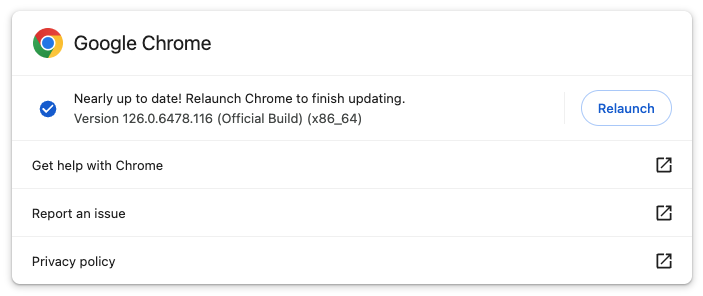
Google Chrome and all the other Chromium-based browsers update themselves automatically. Sort of. While the browser is running, it downloads the latest update but doesn’t install it until you quit and relaunch. Since both macOS and most apps are highly reliable, many people go weeks or even months without relaunching, leaving Chrome vulnerable to recent security exploits. You can check if you’re running the latest version or need to install an update by choosing Chrome > About Google Chrome. (Some extensions, like 1Password, even refuse to run when an update is required.)

In other words, it’s important that you quit and relaunch Chrome and any other Chromium browsers regularly—we recommend a weekly schedule to match Google’s schedule for security updates. There’s no need to worry about losing your open tabs as long as you set Chrome to “Continue where you left off” in Chrome > Settings > On Startup. All the Chromium-based browsers have a similar setting. (While we’re on the topic, remember that it’s also a good idea to restart your Mac occasionally!)

There is one exception among the alternative browsers: Arc. Its developers have figured out how to download and install updates automatically. The feature is still being rolled out to all users, but when enabled, it installs updates when the Mac wakes from sleep rather than forcing the user to quit and relaunch.
Be Careful with Chrome Extensions
Chrome extensions can be both a blessing and a curse. There are vastly more Chrome extensions than Safari extensions, so Chrome and the Chromium browsers enjoy added features that Safari lacks. On the downside, in 2023, researchers discovered dozens of malicious extensions with tens of millions of combined downloads. Google has removed all of them, but many had been on the Chrome Web Store for 6 months or more.
There are over 100,000 extensions in the Chrome Web Store, so while malicious extensions are real, most extensions are legitimate. But if Google can miss them for months or years, how can you reduce the chances of installing something evil? Here’s what we do:
- Reduce the number of extensions you install: The fewer extensions you install, the less likely one is to be malicious or cause other problems. Regularly uninstall any extensions you don’t use from Window > Extensions (the location may vary slightly in the Chromium browsers).
- Only install from the Chrome Web Store: Stick to extensions that have at least gone through Google’s reviews for the Chrome Web Store and avoid direct downloads for extensions.
- Read reviews before installing: Although reviews are no guarantee, if you see people complaining about unusual behavior, that may be a clue that the extension is doing something sketchy.
- Evaluate extension metadata: In general, avoid extensions that aren’t used by many people, that don’t have many reviews, or that aren’t updated frequently. Those aren’t guaranteed signals of a malicious extension but may be a hint to be cautious.
- Review permissions before installing: When you click the Add to Chrome button in the Chrome Web Store, a prompt explains what permissions will be granted to the extension. If they seem unnecessarily broad, cancel the installation.
Don’t stress too much about this. Maintaining good Chrome security comes down to relaunching the browser once a week and being careful about which extensions you use—it’s easy.
(Featured image based on an original by iStock.com/ArtemisDiana)
Social Media: If you use Google Chrome or another Chromium browser instead of Safari, you can stay secure by following two simple rules regarding updates and extensions.