
Set macOS to Require a Password after Screen Saver Start or Display Sleep

Set macOS to Require a Password after Screen Saver Start or Display Sleep

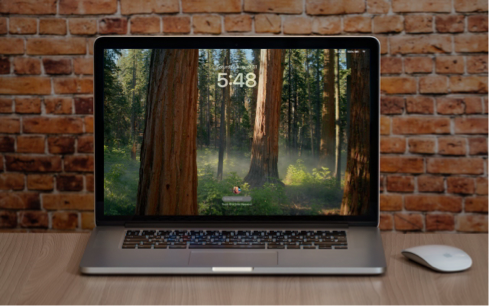
Although paying attention to online security is of primary importance, don’t forget local security. You don’t want to go out for lunch and let someone wandering by your office poke through your email, messages, photos, and private files. To ensure this doesn’t happen, set your Mac to start the screen saver or sleep the display after a few minutes (on a laptop, just close the lid), and then set “Require password after screen saver begins or display is turned off” to a short duration. We recommend 1 or 5 minutes, though you can adjust to balance inconvenience against security. To eliminate the fuss almost entirely, use Touch ID or an Apple Watch to unlock your Mac without having to type your password.

(Featured image based on an original by iStock.com/Armastas)


Social Media: Don’t forget about local security on your Mac. Make sure to require a password shortly after the screen saver starts or the display sleeps to prevent people from riffling through your email, photos, messages, and more.

More Insights

Tech Article

Understanding New MacBook Battery Charging Features

The just-released macOS 26.4 Tahoe introduced two battery-related features for MacBook users, helping them understand and control MacBook charging. A Slow Charger indicator now appears in the battery status menu and in Battery settings when your Mac is connected to a charger that isn’t delivering the minimum recommended wattage. More significantly, a new Charge Limit […]

Read More »
Tech Article

View Suspicious Documents Safely with Dangerzone

A standard piece of advice for staying safe online is to avoid opening attachments from people you don’t know or attachments that seem suspicious. It’s good advice, since PDFs and office documents can contain JavaScript and macros that present a security risk, or they could be maliciously crafted to take advantage of vulnerabilities in common […]

Read More »
Tech Tip

Create AI-Powered Playlists with iOS 26.4’s Playlist Playground

Apple Music subscribers running iOS 26.4 can use the new Playlist Playground feature to create AI-generated playlists tailored to any mood, genre, activity, or era. To try it on your iPhone, open the Music app, tap the Library tab, tap the + button, then tap Create New Playlist. Instead of manually adding songs, tap the […]

Read More »
Tech Article

Two iPhone Exploit Kits Mean You Should Update iOS Now

The discovery of two sophisticated iPhone exploit kits—DarkSword and Coruna—within weeks of each other signals a troubling shift. Unlike previous spyware attacks that targeted high-profile users, these exploit kits have been deployed via compromised legitimate websites, so anyone who visits an infected site could fall victim, with no additional clicks or downloads required. This suggests […]

Read More »
Tech Tip

Intel-Based Apps Will Stop Working in macOS 28

Yes, we know we’re still on macOS 26. In 2025, Apple announced macOS 27 would be the last version to support Rosetta for most Intel-based apps. (Beyond that, Apple will maintain a subset of Rosetta functionality for older, unmaintained gaming titles.) This fact has become relevant because in the just-released macOS 26.4, when you launch […]

Read More »
Tech Tip

Apple Refreshes Studio Display and Introduces Studio Display XDR

Apple has updated its Studio Display with an improved 12-megapixel Center Stage camera with Desk View support, two Thunderbolt 5 ports, and improved bass from its six-speaker system—all for the same $1,599 starting price. More significantly, Apple introduced the Studio Display XDR at $3,299, bringing professional-grade HDR technology to a broader audience at a much […]

Read More »

If you are here and not sure how to proceed, please call us at 626-286-2350, and we would be happy to help you find a solution to your needs.