By Chris Keller|Mar 14, 2023

Protect Your iPhone Passcode by Using Face ID or Touch ID
This is troubling. Joanna Stern and Nicole Nguyen of the Wall Street Journal have published an article(paywalled) and accompanying video that describes attacks on hundreds of iPhone users in major cities throughout the United States. Some attacks involve drugging people in bars or even violence, but the most avoidable involve the thief or a confederate surreptitiously observing the iPhone user entering their passcode before snatching the iPhone and running.
However it happens, once the thief has a user’s iPhone and passcode, they change the user’s Apple ID password—which is shockingly easy for them to do. With the new password, they disable Find My, making it impossible for the iPhone’s owner to erase it remotely. Then they use Apple Pay to buy things and access passwords stored in iCloud Keychain. They can even look in Photos for pictures of documents containing confidential information, such as credit cards and ID cards. After that, they may transfer money from bank accounts, apply for an Apple Card, and more, all while keeping the user locked out of their account. Of course, they’ll resell the iPhone too. (Apparently, Android users are susceptible to similar attacks, but Android phones have a lower resale value, so they aren’t being targeted as much.) Victims have reported thefts of tens of thousands of dollars, and many of them remain unable to access their Apple accounts.
We fervently hope Apple addresses this vulnerability in iOS 17, if not before. At a minimum, Apple should require users to enter their current Apple ID password before allowing it to be changed, much as the company requires at the Apple ID website. Plus, Apple would ideally do more to protect access to iCloud Keychain passwords from a passcode-wielding iPhone thief. (The closest we have now is a different Screen Time passcode, which can prevent account changes, but it blocks access to so many settings that most people will find it too annoying and turn it off.)
Although the chances of you falling prey to one of these attacks is vanishingly low, particularly if you don’t frequent urban bars or areas that suffer from snatch-and-run thefts, the consequences of a passcode theft are so severe that it’s worth taking steps to deter the malicious use of your passcode. With luck, you’re already doing many of these things, but if not, take some time to re-evaluate your broader security assumptions and behavior.
Pay More Attention to Your iPhone’s Physical Security While in Public
Most importantly, you don’t want to make it easy for a thief to grab your iPhone. Apart from a wrist strap, there’s no reliable way to prevent someone from snatching it from your hand. When you’re not actively using your iPhone, stash it in a secure pocket or purse instead of leaving it out on a bar or table. Many people are blasé about protecting their iPhones, so if you take more precautions, you’re less likely to have problems.
Always Use Face ID or Touch ID When Unlocking Your iPhone in Public
The easiest thing you can do to protect yourself from opportunistic attacks is to rely solely on Face ID or Touch ID when using your iPhone in public. If a thief sees you entering a passcode, you could become a target.
We know people who avoid Face ID or Touch ID based on some misguided belief that Apple controls their biometric information, but nothing could be further from the truth. Your fingerprint or facial information is stored solely on the device in the Secure Enclave, which is much more secure than passcode entry in nearly all circumstances.
We’ve also run across people for whom Face ID or Touch ID works poorly—if that’s you, conceal your passcode from anyone watching, just as you would when entering your PIN at an ATM.
Use a Strong Passcode
By default, iPhone passcodes are six digits. You can downgrade that security to four digits, but don’t—that’s asking for trouble. You can also upgrade the security to an alphanumeric passcode that can be as long as you like, but that’s overkill, in our opinion. Video would still capture you entering it, and if you’re focused on entering it accurately, you’re less likely to be aware of someone shoulder-surfing behind you.
That said, make sure your passcode isn’t trivially simple. Basic patterns like 333333 and 123456 are far more easily observed or even guessed. There’s no reason not to use a passcode that’s memorable but unguessable, such as your high school graduating class combined with your best friend’s birth month.
Don’t Share Your Passcode Beyond Trusted Family Members
Even those who don’t have motivated thieves targeting them need to be careful to protect their passcode. Our simple rule of thumb is that if you wouldn’t give someone complete access to your bank account, you shouldn’t give them your passcode. If extreme circumstances require you to trust a person outside that circle temporarily, reset the passcode to something they’ll remember—even 111111—and change it back as soon as they return your iPhone.
Switch from iCloud Keychain to a Third-Party Password Manager
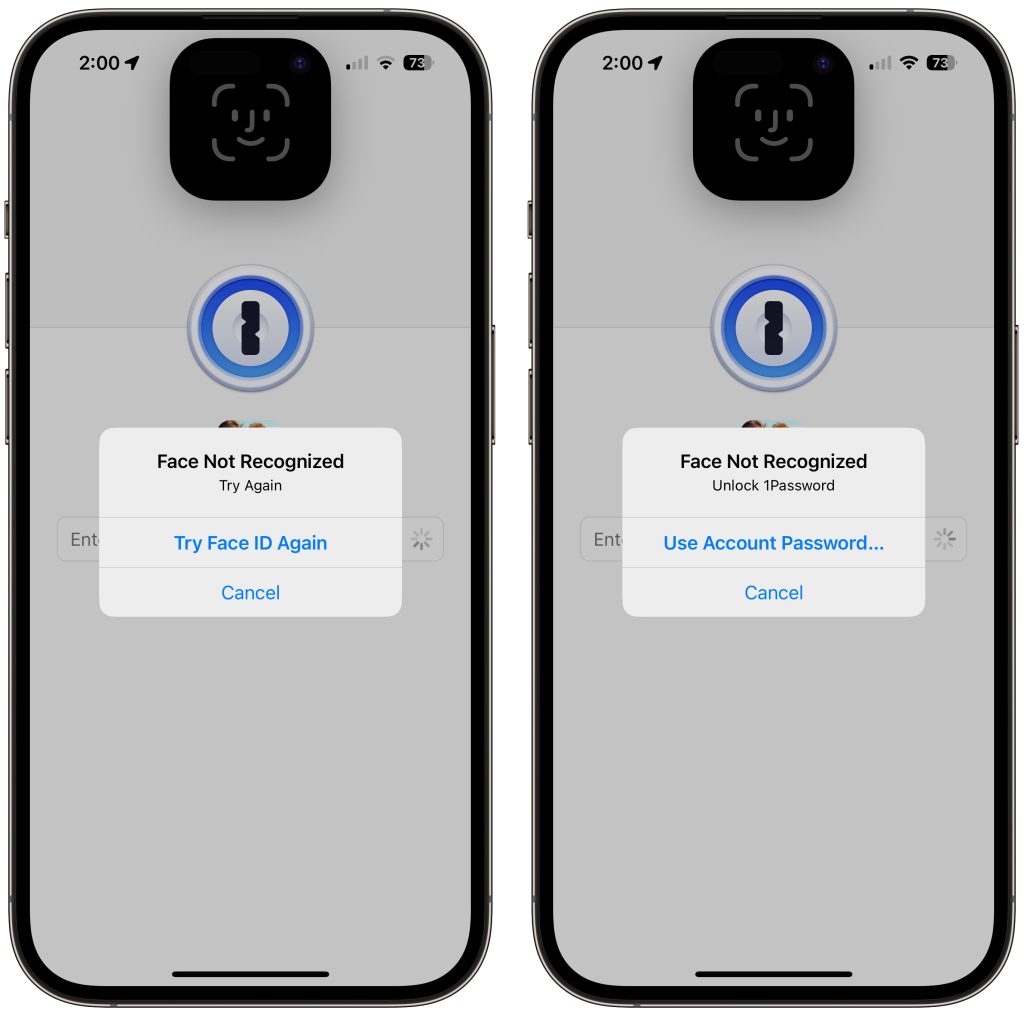
Although Apple keeps improving iCloud Keychain’s interface and capabilities, having all your Internet passwords accessible to a thief who has your iPhone and passcode is unacceptable. Instead, we suggest you use a third-party password manager like 1Password or BitWarden (we no longer recommend LastPass). Even when a third-party password manager allows easier unlocking with Face ID or Touch ID (which both 1Password and BitWarden do), they fall back on their master password, not the device’s passcode. After you move your passwords from iCloud Keychain to another password manager, be sure to delete everything from iCloud Keychain.
Delete Photos Containing Identification Numbers
Many people take photos of their important documents as a backup in case the original is lost. That’s a good idea, but storing photos of your driver’s license, passport, Social Security card, credit cards, insurance card, and more in Photos leaves them vulnerable to a thief who has your iPhone and your passcode. With the information in those cards, the thief has a much better chance of impersonating you when opening credit cards, accessing financial accounts, and more. Instead, store those card photos—or at least the information on them—in your password manager.
A Security Wakeup Call
Again, although it’s very unlikely that you would fall prey to one of these attacks, we appreciated the encouragement to re-evaluate our security assumptions and behaviors, and we suggest you do the same.
(Featured image by iStock.com/AntonioGuillem)
Social Media: Prompted by a spate of attacks where an iPhone thief obtains the user’s passcode and uses it to lock the user out of their iCloud account, steal their money, and more, we suggest ways you can protect yourself.