To help yourself make better use of your tech in the new year, do some housekeeping now.

Clean out the inbox
Whether you get email for personal or business purposes, there is likely more in your inbox than you realize, and no better time to make your inbox more useful than now. Go through all the emails that have been in your inbox and Delete them — if a message is not important, junk mail, a small unimportant response in a long chain, an ad, a duplicate, or something else get rid of it now so you don’t spend time on it later; File them — put messages you might need to refer to later in a folder so that you know you can find them, or Act on them — put it on your todo list or reply to it, then file it as a Follow Up later finally check those prior archive folders you created in prior years and see if there is stuff that you can delete there. If you spend an hour or 2 on this in January, it will save you hours later in the year and your email server will thank you.
Organize photos

There are likely a thousand or more new photos on your phone since last year. This is the time to take an hour or so to organize, remove unwanted copies, and identify and categorize your photos on your phone. How many times have you looked at an old photo and wondered who that gal was in the back? Today, enter all names you have handy so that the task will be simpler next time.
The next most important thing is do you have permanent storage for your photos. A cloud service? A hard drive in a safe place or something else to protect these photos for the future. The are many options from Apple, Google, and others and you will benefit from additional organization and the ability to share your photos easily with others.
Delete unused applications
Did you download some game months ago, use it once, and never again, or do you have an old version of Applications that are no longer necessary? Check your phone and computer for applications you have not used for months and no longer need and remove them. If you are concerned, keep it but you could find several GB of storage and help your devices live just that little bit longer or allow for those next thousand photos.
Update Passwords
You likely have passwords that are many years old. This is the time to make sure that all your passwords are secure (I.e. not Password123), stored securely, and uncompromised. If you have a password system such as 1Password, be sure it is up to date and all your passwords are documented there. Set up Multi-Factor authentication, if it’s available, and make sure you have a secure backup of your password storage. Many Password systems will warn you if there is potential for a password being compromised. Also, make sure that you have no duplicate user name/password combinations.
Organize files

Over the years plenty of files are saved on our devices that we no longer need. Take some time now to look for those files, especially: Old Updates, duplicate downloads, no longer needed attachments and working files, and anything that was important and isn’t anymore. Move files out of your downloads folder that you do need and file them as desired.
And while you are at it, how about rotating your physical files and moving files from prior years that are not frequently accessed to less-priority storage.
WiFi and Internet access
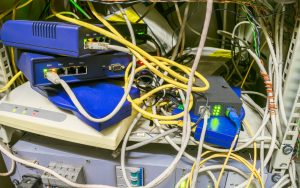
Is your Internet access and Wifi working where you need it? Is it fast enough and provides the service you need to support streams, games, and data transfer? This is a good time to check and make sure that you can do what you want and even consider upgrading the Wireless Access Point you got 5 years ago when 802.11AC was a big thing.
If after you unwrap your holiday tech gifts you still have questions about how they fit into your technical world or need something to support the newness better, we can help you with as much as a short phone call or an onsite visit, if desired. Email support@consultantalliance.com or 626-286-2350.