Is your child heading off to college soon? They’ve undoubtedly been using a computer throughout high school, though now is a good time to look at getting them a new one, especially if theirs is old or unreliable, is shared with other family members, or was a school loaner. If you haven’t been keeping up with Apple’s Mac lineup, you might be unsure which model is the best choice.
First, check with the college before buying. Although this is less common than in the past, some college departments have specific requirements based on the software students use in their classes. Generally, these revolve around processor type, amount of RAM, and storage space. Current Macs should meet or exceed all those requirements. More problematic is if the college requires a Windows machine; if that’s the case, see if the requirement is based on specific Windows-only software needs or is just a general desire on the part of the IT staff to maintain a homogeneous support environment. Second, see if the college provides access to educational pricing—most will—to save a few hundred dollars off the prices listed below. Regardless, Apple often has a Back to School offer.
Aim for a laptop over a desktop Mac. Students lead nomadic lives and need to get work done in multiple places on campus, so having to head back to the dorm to use an iMac or Mac mini will be limiting. Plus, they often need to work during breaks, so they need a Mac that’s easy to bring home. A student accustomed to taking notes on an iPad with a keyboard and Apple Pencil might be able to use that in conjunction with a desktop Mac, but most students should get laptops.
In the past, deciding which model was best for a given student was more challenging, but Apple’s move to the speedy and power-efficient M-series chips makes the decision easier. We see three primary scenarios:
- Most students: Buy Apple’s MacBook Air, Apple’s lightest and least expensive laptop. Within the MacBook Air line, you have four choices. The least expensive is the 13-inch M1 MacBook Air from 2020, which costs $699 exclusively from Walmart. Get it only if budget is paramount. The three remaining choices begin with the 13-inch M2 MacBook Air from 2022, which Apple has kept in the lineup at $999. However, the longest-lasting choice is either the 13-inch or 15-inch M3 MacBook Air introduced in March 2024. The 13-inch model boasts a 13.6-inch screen, faster performance, 24 GB memory ceiling, and up to 2 TB of storage, starting at $1099. Those who want a larger screen should look at the 15-inch M3 MacBook Air, which starts at $1299 and is otherwise nearly identical.
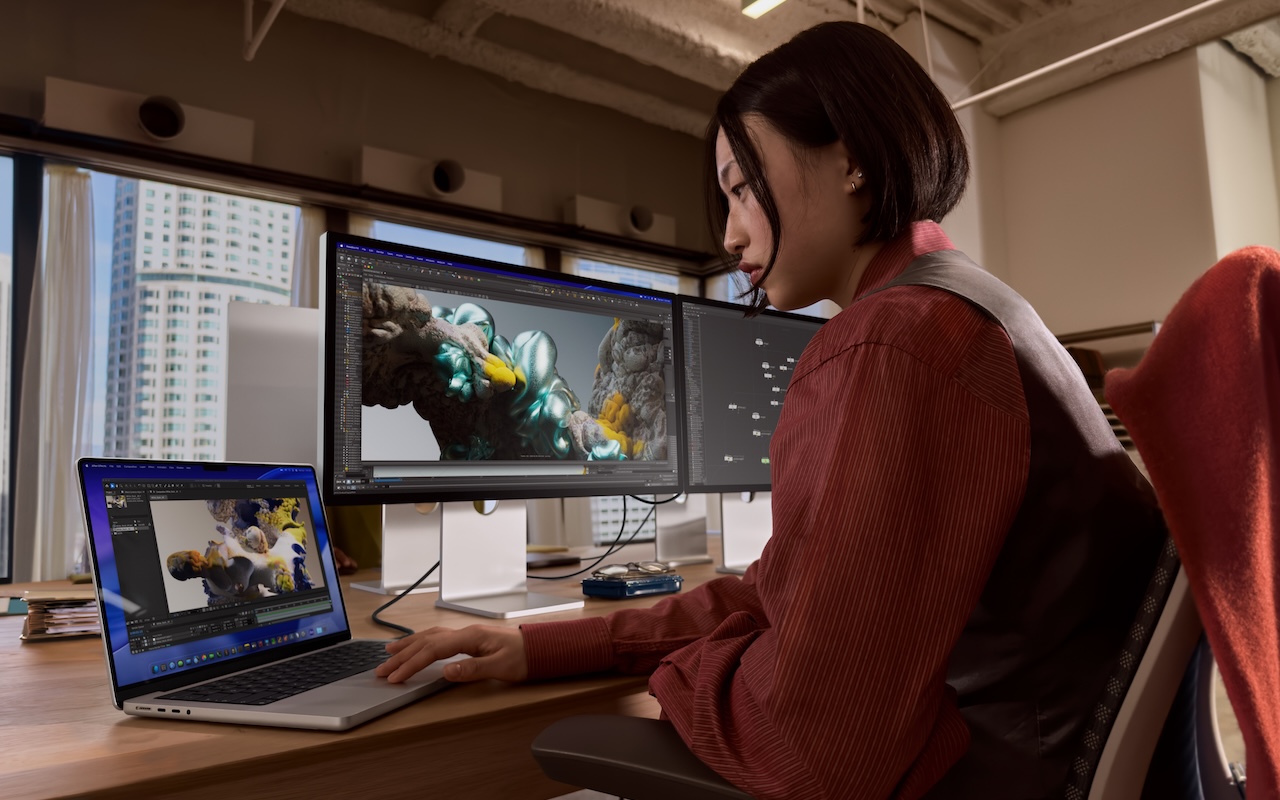
- Better specs: If performance is more important than price—especially if your student will be working with processor-intensive tasks like video editing—look to the 14-inch MacBook Pro. It features a powerful M3, M3 Pro, or M3 Max chip, and the M3 Pro and M3 Max models can be configured with much more memory. Although its 14.2-inch screen is physically a little smaller than that of the 15-inch MacBook Air, it has a somewhat higher resolution. Its price starts at $1599 but goes up quickly with the M3 Pro and M3 Max chips. (There’s also a 16-inch MacBook Pro, which comes only in M3 Pro and M3 Max configurations and is more than most students need.)
- Windows compatibility: The only downside of the transition to Apple silicon is that it’s more challenging to run Windows using virtualization software like Parallels Desktop (half-price for students) or VMware Fusion (free for personal use). If Windows compatibility is a bonus but not essential, either of those with the Arm version of Windows 11 should work for most apps. However, if Windows compatibility is paramount, your choices are a used Intel-based MacBook Pro or—much as we hate to say it—a PC laptop that runs Windows natively.

Regardless of which laptop you decide on, you’ll have to pick a processor, amount of memory, and storage capacity:
- Processor: With the 13-inch M1 MacBook Air, you’re limited to the M1 chip with an 8-core CPU and 7-core GPU. The 13-inch M2 and M3 MacBook Air models always have an 8-core CPU, but you can pay $100 to upgrade from an 8-core GPU to a 10-core GPU. The 15-inch M3 MacBook Air always comes with a 10-core GPU. The performance difference isn’t likely noticeable with everyday apps, but for $100, it might be worth upgrading, just in case. The 14-inch MacBook Pro has two M3 Pro options and one M3 Max option; choose between them by weighing likely performance needs against increased costs.
- Memory: The 13-inch M1 MacBook Air only comes with 8 GB, which is acceptable for most college students. The M2 and M3 MacBook Air models and the M3 models of the 14-inch MacBook Pro offer 16 GB and 24 GB options. We usually recommend 16 GB to reduce the chance that memory becomes a performance-limiting factor, although 24 GB could be helpful in higher-performance situations. With the 14-inch MacBook Pro with M3 Pro or M3 Max, the amount of memory changes with the chip. The M3 Pro comes with 18 GB standard, but you can opt for 36 GB. With the M3 Max, 36 GB is standard, with options to upgrade to 48, 64, 96, or 128 GB.
- Storage: For all the MacBook Air models, 256 GB is the lowest storage level, and you can upgrade to 2 TB. The 14-inch MacBook Pro starts at 512 GB and offers upgrades up to a whopping 8 TB. Choose the amount of storage based on two considerations: budget (storage gets expensive fast) and anticipated usage (audio and especially video production can consume a lot of space, as can very large numbers of photos, but most other uses don’t). Remember that it’s easy to connect an external Thunderbolt SSD or hard drive to offload large files that don’t always have to be available. Large files can also be kept in cloud-based storage.
For most students, the best choice for a Mac likely to last across four years of college would be the 13-inch or 15-inch M3 MacBook Air with a 10-core GPU, 16 GB of memory, and 512 GB of storage. Although the 15-inch size has a larger screen, it’s also heavier and takes up more space in a backpack, so consider portability when making your final choice. Be sure to budget for AppleCare+, too; it’s almost guaranteed that some mishap will befall a student laptop, and AppleCare+ covers up to two incidents of accidental damage every year.
We recommend having conversations with your child to find out what they think they’ll need—and be sure to compare against the college’s recommendations—but if you have any questions after that, feel free to contact us.
(Featured image based on an original by Apple)
Social Media: Which Mac is best for a college student in 2024? Our short answer is either the 13-inch or 15-inch M3 MacBook Air, although students with significant processing needs (like audio or video editing) might consider the 14-inch MacBook Pro.