Annoyed by Inline Predictive Text Suggestions? Here’s How to Turn Them Off

Estonia, Tallinn, July 11, 2020. Apple Macbook pro 15 Retina on table

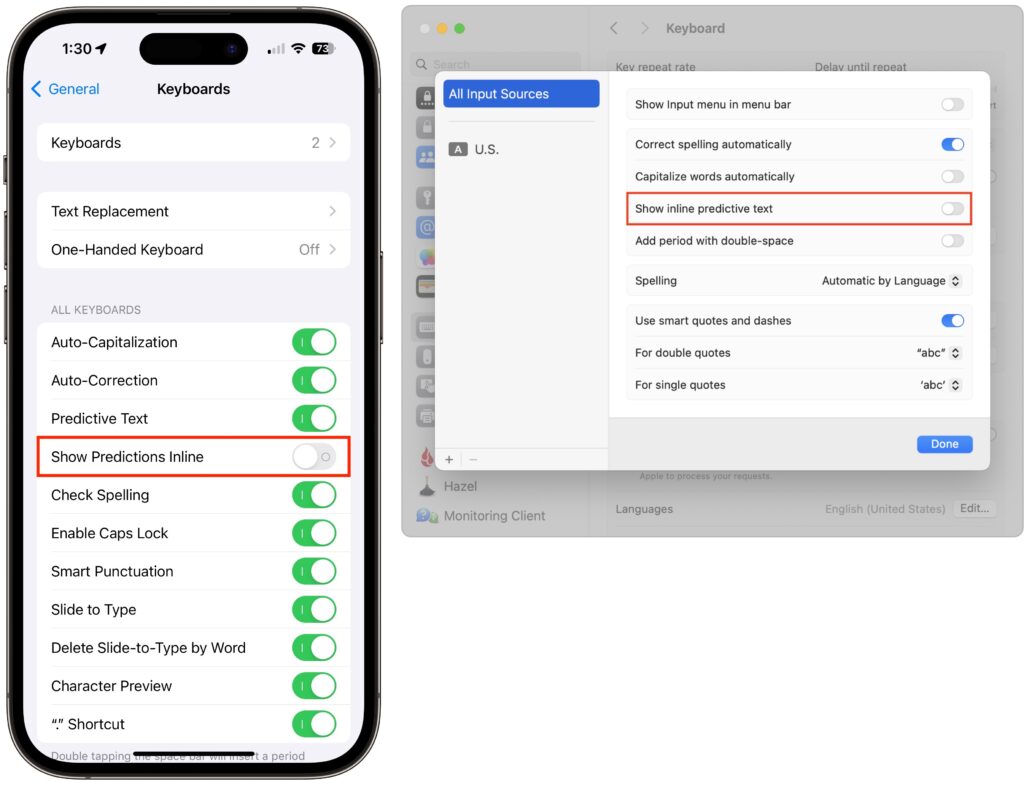
In a slight nod to the hype surrounding generative AI, Apple added inline text prediction capabilities to the iPhone, iPad, and Mac. They can be helpful, particularly on the iPhone and iPad, where it’s often much easier to tap the Space bar than to finish typing a word or sentence. But that’s less true on the Mac, where a fast typist can be slowed down or derailed by the suggestions, and some people dislike having an AI finish their thoughts. The feature is easily turned off. On the iPhone and iPad running at least iOS/iPadOS 17.2, go to Settings > General > Keyboard and switch off Show Predictions Inline. (Leave Predictive Text on to continue to get suggestions above the keyboard.) On the Mac running macOS 14.2 Sonoma or later, open System Settings > Keyboard, click Edit under the Text Input header, turn off “Show inline predictive text,” and click Done.
(Featured image based on an original by iStock.com/Armastas)


Social Media: If you’re not a fan of the new inline text predictions on your iPhone, iPad, or Mac, you can easily turn them off and get back to typing only the words you want to appear.


More Insights

Tech Tip

Control Song Transitions in Apple Music

A new feature for Apple Music subscribers in the Music app in iOS 26, iPadOS 26, and macOS 26 is AutoMix, which Apple says causes songs to “transition at the perfect moment, based on analysis of the key and tempo of the music.” It fades between songs as a DJ would, but it’s not always […]

Read More »
Tech Article

Five Invisible Characters That Still Matter in Word Processing and Layout

In earlier eras of word processing, users were much more likely to encounter explanations of document structure—not because everyone had to become an expert, but because knowledge was shared differently. Software shipped with detailed manuals, user groups and training classes focused on how documents worked under the hood, and power users routinely shared mental models […]

Read More »
Tech Tip

Try macOS 26.2’s Edge Light for Low-Light Video Calls

We can’t always guarantee optimal lighting for video calls, especially when using laptops on the go. A new feature in macOS 26.2 Tahoe called Edge Light might help. It’s a video effect that uses the outermost pixels of your Mac’s display to create a bright white rectangle that illuminates your face during video calls. It […]

Read More »
Tech Article

How to Ensure You Don’t Miss Reminders

Recording a task in Apple’s Reminders app on your Mac, iPhone, or iPad is just the first step—the app captures what you need to do—but what matters more is being reminded to take action at the right moment. (The most important step, of course, is following through, but that’s on you.) Here’s how to configure […]

Read More »
Tech Tip

When Google Points to a Chatbot Conversation, Be Skeptical

Here’s something new to watch out for: poisoned chatbot conversations surfaced in Google searches. The sharing features in ChatGPT, Claude, Gemini, Grok, and other chatbots allow users to publish their conversations as public Web pages, which can be indexed by search engines and appear alongside traditional websites in search results. Attackers can seed those conversations […]

Read More »
Tech Article

How to Encourage Successful AI Use in Your Organization

The AI hype train continues to gain momentum, with breathless reports of rapid user growth, billion-dollar deals, and sky-high company valuations. At the same time, it’s easy to highlight AI pilot failures, problematic uses, and worries about job losses. As always, reality lies between the extremes. AI is just another technological tool, like spreadsheets, email, […]

Read More »

If you are here and not sure how to proceed, please call us at 626-286-2350, and we would be happy to help you find a solution to your needs.