
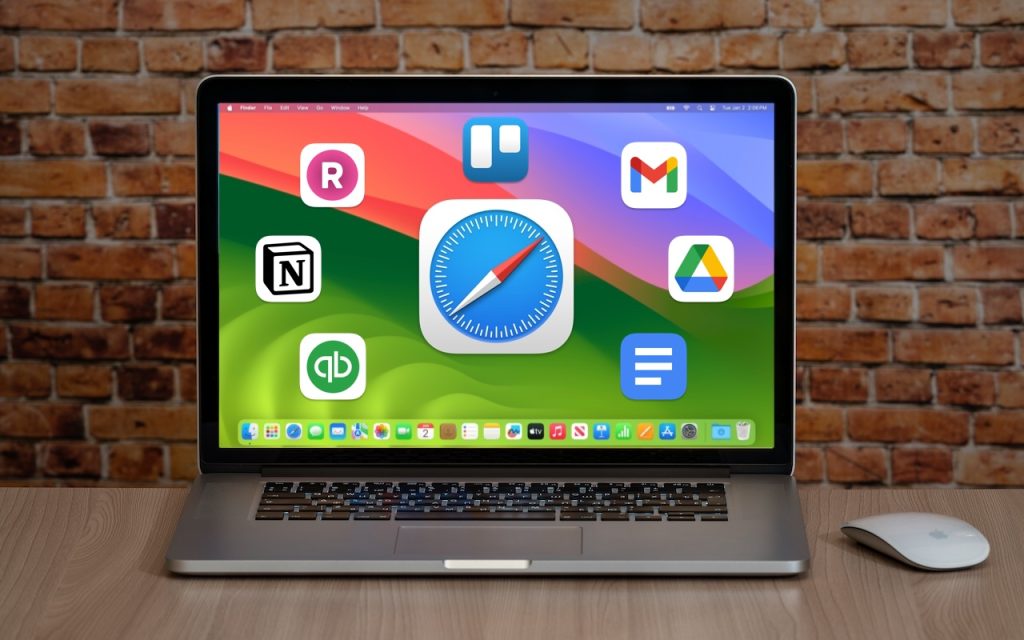
The concept of site-specific browsers has been around for a long time, but in the version of Safari that comes with macOS 14 Sonoma, Apple brought it to the big time by making setup easier than ever.
Put simply, a site-specific browser is a Mac app that encapsulates a single Web app or site. The goal is to break a website out of a Web browser and turn it into what looks and works like a regular Mac app. Gmail the Web app can become Gmail the Mac app.
What kind of websites might you want to turn into a standalone app? Beyond Gmail, consider Google Docs, Netflix, Notion, QuickBooks, and any other Web-focused app that feels more natural as a standalone app. Additionally, a site-specific browser can be helpful for any website you use regularly throughout the day, such as a discussion site, news aggregator, or company intranet.
To create a Web app in Safari, open the desired page, choose File > Add to Dock, and give the app your desired name.
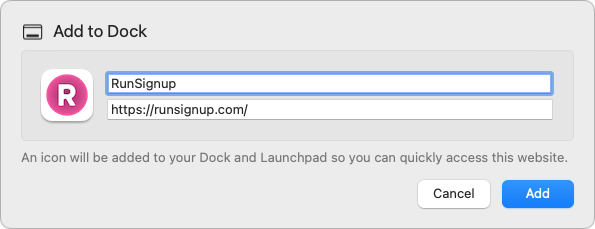
That’s it! Safari saves the Web app to the Applications folder in your Home folder (not the regular top-level Applications folder), adds it to the next open spot on the Dock and in Launchpad, and enables you to open it using Spotlight. The tab you had open in Safari remains open, so close that and launch the new Web app from the Dock.
Web apps look and feel just like Web pages in Safari, with a few exceptions:
- If you click a link to another page on the same website as the Web app, the page opens within the window, but clicking a link to another website opens it in Safari as a new tab. There are a few special cases, too—double-clicking a document in a Google Drive Web app opens it in a new window within the Web app rather than in Safari.
- Web apps have their own browsing history, cookies, website data, and settings, which aren’t shared with Safari.
- Web app toolbars have only back and forward buttons and a Share button. They lack an address bar, bookmarks, tabs, and extensions, but you can switch back to Safari to get those—choose File > Open in Safari.
- For websites that have notifications, the Web app’s icon in the Dock can show the number of unread notifications.
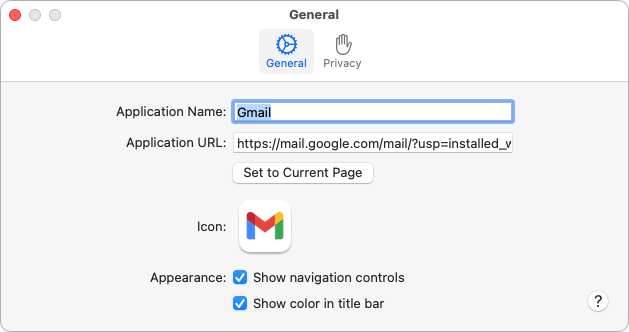
To tweak the name or appearance of the Web app, click the app’s name in the menu bar and choose Settings. The only option that isn’t obvious is the icon—if it’s too fuzzy or not what you prefer, click it and select a file in the dialog that appears. You can select either an image file or another app. (Hint: To find more icons, search for “AppName icon” in Google or Bing.)
Keep these tips about Web apps in mind:
- You can remove a Web app from the Dock without deleting it from your drive.
- To delete a Web app, drag its icon from your Home folder’s Applications folder to the trash.
- To make the Web app launch at login, add it to your login items in System Settings > General > Login Items.
- Web apps cannot receive incoming URLs on their own. In other words, if you have a Google Docs Web app and click a Google Docs link that someone sends you in email, it will open in your default Web browser, not your Google Docs Web app. However, you can use the $10 utility Choosy to redirect appropriate links to specific Web apps.
Overall, Apple has done a good job with Safari Web apps. They’re easy to create and provide most of what you’ll likely want in an app that encapsulates a website. Give them a try, but if you find yourself needing capabilities beyond what Safari provides, such as access to extensions, support for tabs, more control over how links open, and choices of different browser engines, check out alternative site-specific browser apps like Unite, Coherence X, and WebCatalog.
(Featured image based on an original by iStock.com/Armastas)
Social Media: Safari in macOS 14 Sonoma introduced Web apps—also known as site-specific browsers—that let you turn a website into what looks and feels like an independent app on your Mac.
