
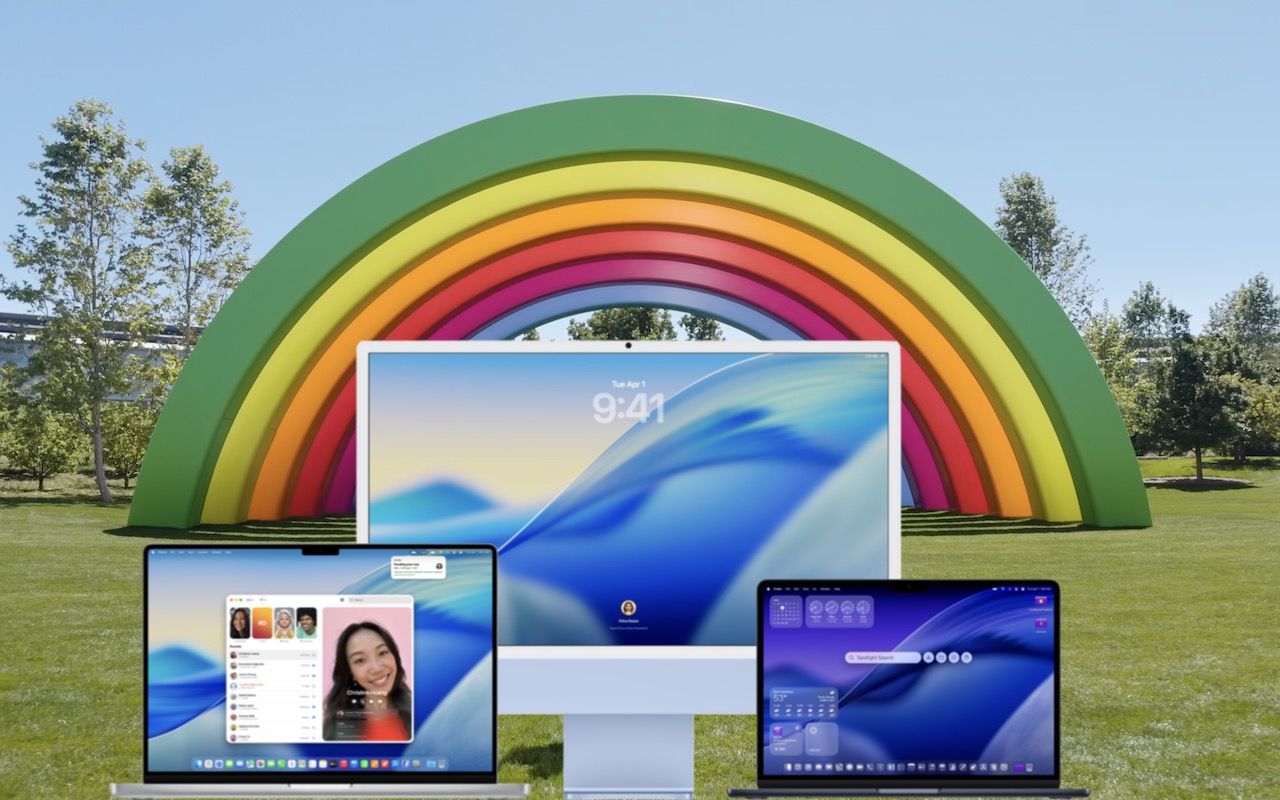
Apple has now sufficiently refined macOS 26 Tahoe to make an upgrade worthwhile for interested users. You don’t need to upgrade immediately, but there are no strong reasons for most people to delay further.
Unlike last year, when Apple was releasing new Apple Intelligence features with each macOS 15 Sequoia update, the company launched nearly all the promised new features in Tahoe with version 26.0. There’s no need to wait for the more personalized Siri upgrade Apple promised for 2026—we won’t know how good it is until it ships.
Tahoe is now stable and polished enough for most users to upgrade with confidence, particularly on Apple silicon Macs. While there are some minor concerns—such as dissatisfaction with Liquid Glass, higher baseline resource usage, a few battery and performance issues, and the removal of Launchpad—none are deal-breakers. Of course, Apple will continue releasing macOS updates in 2026. You can expect macOS 26.3 in January, 26.4 in late March or early April, and 26.5 in May, along with several security and bug-fix updates in between.
Although Tahoe is ready for prime time, you can still delay the upgrade as long as you’re running macOS 14 Sonoma or macOS 15 Sequoia and are staying current with Apple’s security updates. Older macOS versions no longer receive security fixes, making them more vulnerable to attacks. Possible reasons to continue delaying include:
- You’re too busy: The upgrade process will take a few hours, plus some additional time to configure everything properly afterward. When you’re ready to upgrade, aim for when a little downtime won’t be a problem.
- You rely on incompatible software: Most modern apps should now be updated for Tahoe—Adobe recently qualified its Creative Cloud apps. But if a necessary app is known to have issues, you’ll need to wait for an update or find an alternative that works.
Despite the visual changes from Liquid Glass, using Tahoe remains straightforward—it’s still macOS. Even if you’re not an immediate fan of Liquid Glass, Tahoe has new features that might appeal to you. Control Center is now fully customizable, and you can make folders easier to identify by assigning them colors and badges. Spotlight has become an even better app and action launcher, and it now includes access to your clipboard history, a feature previously available only with third-party software. The Phone app has come to the Mac, allowing you to make and take phone calls on your Mac as long as your iPhone is nearby. Live Translation automatically translates text in Messages, provides translated captions in FaceTime, and offers real-time spoken translations in the Phone app.
Before You Upgrade
Once you’ve decided to upgrade to Tahoe, you have three main tasks:
- Update apps: Make sure all your apps are up to date. If you regularly delay updates, now’s the time to let them complete so you have Tahoe-compatible versions.

- Clear space: Tahoe may require up to 25 GB of free space to upgrade, and the Tahoe installer itself can take up to 17 GB, so we recommend ensuring you have at least 50 GB free. Don’t cut this close—you should always have at least 10–20% free space for virtual memory, cache files, and breathing room. Check by choosing System Settings > General > Storage; in earlier versions of macOS, choose About This Mac from the Apple menu and click Storage. System Settings provides quick ways to free up space. For iCloud Drive users, another easy way to save space is to Control-click large folders and choose Remove Download to “evict” the local versions of those files temporarily; Box, Dropbox, and Google Drive have similar features.

- Make a backup: Never install a macOS update or upgrade without first making sure you have at least one current backup. Ideally, you should have a Time Machine backup, a data-only duplicate, and an Internet backup. This way, if something goes wrong, you can easily revert.

Upgrading
After finishing those tasks, make sure you won’t need your Mac for a few hours. There’s no way to know precisely how long the upgrade will take, so don’t start an upgrade if you need your Mac soon.
To start the upgrade, go to System Settings > General > Software Update in Sequoia, Sonoma, or Ventura (System Preferences > Software Update in previous versions of macOS), click the Upgrade Now button, and follow the prompts. For more help, see Joe Kissell’s ebook Take Control of Tahoe.

After You Upgrade
One reason to set aside ample time for your Tahoe upgrade is that cleanup tasks typically follow. We can’t predict exactly what you’ll encounter—it depends on your current macOS version and the apps you use—but here are a few scenarios we’ve seen before:
- macOS may prompt for your Apple ID password and your Mac’s login password. If you have multiple Macs, you may also need to approve the upgrade from another Mac signed in to the same Apple Account. Don’t worry that malware has compromised your Mac—these authentication prompts are normal.
- Some apps may request additional permissions even if you previously granted them. Again, that’s okay.
- If you use your Apple Watch to unlock your Mac and apps (and you should; it’s great!), you may need to re-enable that feature in System Settings > Touch ID & Password (or Login Password on a Mac without Touch ID). In older versions of macOS, it was located in System Preferences > Security & Privacy > General.
- If you use Gmail, Google Calendar, or other Google services, you might need to log in to your Google account again.
- Websites that remember your login state will likely require you to log in again. However, if you’re using a password manager like Apple’s Passwords or 1Password, that’s easy.
- You might need to re-enable text message forwarding to your Mac. You do this on your iPhone by going to Settings > Apps > Messages > Text Message Forwarding.
With the housekeeping done, it’s time to check out all the new features in Tahoe!
(Featured image by Apple)
Social Media: When should you upgrade to macOS 26 Tahoe? There’s no rush to install it today, but we believe it’s safe for those who want to take advantage of the new features. Here’s what to do before, during, and after the upgrade.
