

Consider Moving Your Mac’s Dock to the Side of the Screen

Top aerial view of a marina with boats, close up, copy space

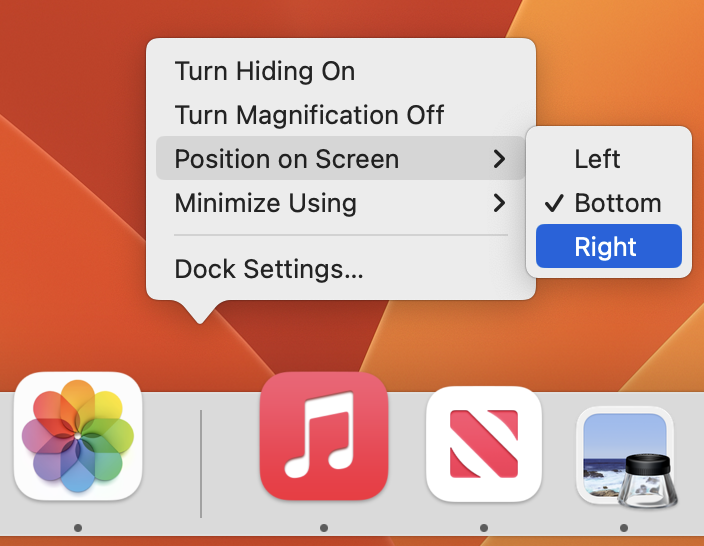
For most of us, our Mac’s screen is wider than it is tall, so longer Web pages and documents often benefit from more room from top to bottom. To maximize the amount of usable vertical space and reduce the need to scroll as much, you can set the Dock to hide automatically and appear only when you move your pointer to the bottom of the screen. A better approach is to position your Dock on the side of your screen where it’s less likely to use space you’d prefer to have available for content. Many people prefer the right side, but you can also try the left to see how it works for you. The easy way to move the Dock is to Control-click its separator bar and choose the desired side from the Position on Screen menu.
(Featured image based on an original by iStock.com/MikeLaptev)


Social Media: The default location of the Dock on the bottom of a Mac screen isn’t ideal because it takes valuable space that could contain content. Try hiding the Dock automatically or moving it to the side of the screen.

More Insights

Tech Tip

How to Look Up a Saved Wi-Fi Network Password

Apple offers several simple ways to share Wi-Fi network passwords. When someone nearby tries to connect to a Wi-Fi network with an iPhone, iPad, or Mac, and they are in your Contacts app, you will be automatically prompted to share the network password with them. Additionally, in the Passwords app, you can display a Wi-Fi […]

Read More »
Tech Article

Keep Your IT Budget Working During a Slowdown

When business slows down, it’s tempting to reduce IT spending. But that approach often backfires, creating bigger problems—and larger bills—down the road. Beyond the productive work you accomplish on your Macs, your technology infrastructure enables you to communicate with clients, send invoices, manage schedules, and get paid. A downturn is precisely when you need those […]

Read More »
Tech Tip

New Apple Creator Studio Bundles Pro Apps

Apple has introduced Apple Creator Studio, a subscription bundle of Final Cut Pro, Logic Pro, Pixelmator Pro, Motion, Compressor, and MainStage, priced at $12.99 per month or $129 per year (with education pricing at $2.99 per month or $29.99 per year). The bundle also includes premium content and a few AI tools for the iWork […]

Read More »
Tech Article

Why Your Windows Reopen (Or Don’t) As You Expect

Have you noticed that when you restart your Mac or relaunch an app, your previous windows and documents sometimes reappear exactly as you left them, but at other times you’re greeted with a clean slate? This behavior is controlled by Resume, a technology introduced in OS X 10.7 Lion back in 2011. Resume automatically reopens […]

Read More »
Tech Tip

Make Finder Window Columns Resize to Fit Filenames

Column view in the Finder has an annoying tendency to either show overly wide columns that waste space or truncate long filenames, forcing you to drag a column divider to see more of the name. In macOS 26.1 Tahoe, Apple added an option to the Finder’s View Options window that automatically adjusts column widths to […]

Read More »

If you are here and not sure how to proceed, please call us at 626-286-2350, and we would be happy to help you find a solution to your needs.