

Although Web browsers have added productivity features over the years, most have not been overhauled to support modern usage patterns. We have bulging bookmarks bars, tabs by the trillions, and inefficient habits like using searches to load even regularly used websites. Arc, an innovative new Web browser for the Mac from The Browser Company, addresses these issues and could radically improve your productivity. It is a free download.
Based on Chromium, the open-source foundation under Google Chrome, Arc is in some ways a more capable, more attractive version of Chrome. It supports Chrome extensions, and Web apps designed to perform best in Chrome run equally well in Arc.
Spaces Give You Room to Work
What sets Arc apart from Chrome—and all other browsers—is how it enables users to organize their work into Spaces. Spaces are color-coded sidebars for different types of activities, so you can set them up based on what distinctions make sense to you. You might have Spaces for home and work, and perhaps another for a club or hobby. You could put all your news reading and social media into a Space or make a Space for financial or healthcare websites. If you’re a freelancer or consultant, you could create a Space for each client, and each Space can have its own Profile that maintains separate logins, history, saved passwords, extensions, and more.
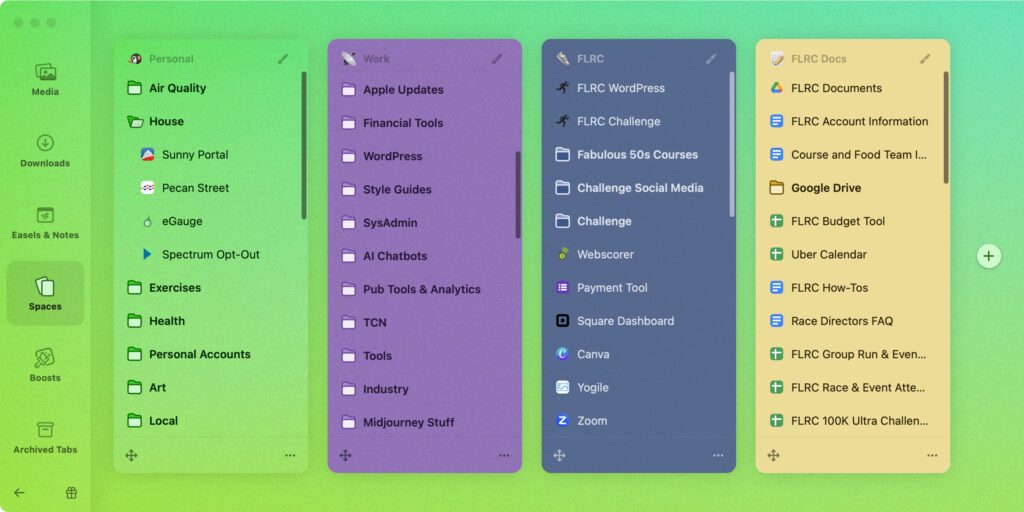
Space Sidebars Hold Pinned Tabs and Regular Tabs
Spaces are only the start of the clever ways Arc helps you focus on your work and load Web pages more efficiently. Each Space sidebar hosts its own persistent pinned tabs for Web apps, sites, and pages. Once you are logged in to a website and have a page open that you return to often, you can make that into a pinned tab—after which you can return to it with one click. Optional folders can hold related pinned tabs for additional organization.
You can change the name and icon of pinned tabs so they’re easier to differentiate. A click on a pinned tab’s icon takes you back to the original pinned URL if necessary, and Control-clicking a pinned tab lets you update a pinned tab’s incorrect URL rather than recreating it. For example, if a pinned tab takes you to a website’s public home page, you should update it with the personalized dashboard page you see after logging in.
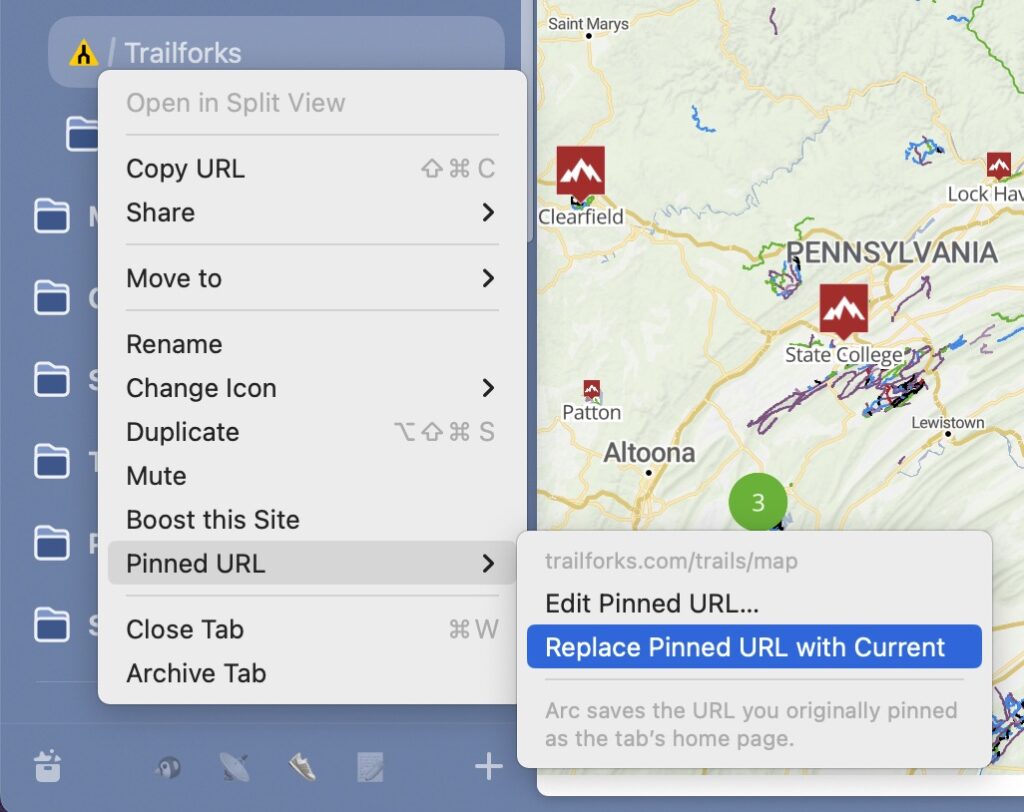
Think of pinned tabs as better bookmarks—they’re always visible in the sidebar rather than hidden in a menu, and you can switch among pinned tabs fluidly without losing your place, whereas using bookmarks constantly creates new tabs interspersed with all the old ones. If switching back and forth between two tabs is clumsy, for example, while you’re writing in one tab and researching in another, you can open them in Arc’s Split View. Option-click any tab to add it to a Split View; press Command-W to close the active tab.
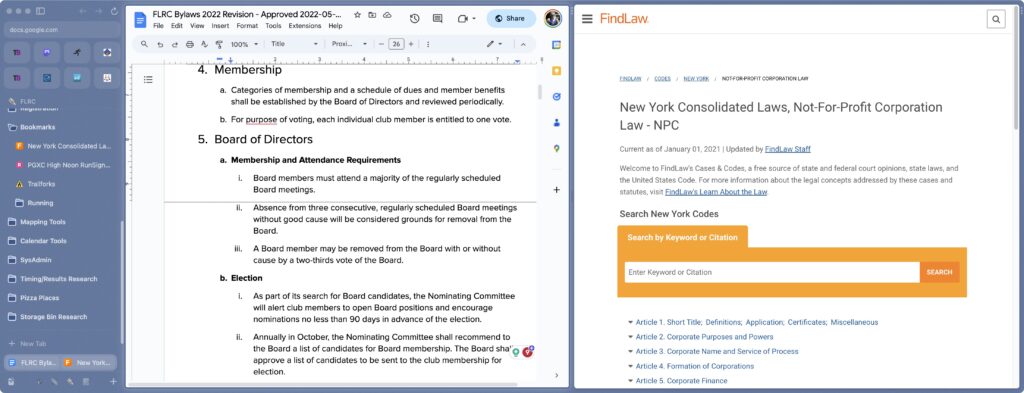
Of course, many tabs don’t need to be persistent, and below your pinned tabs, you’ll see standard tabs that work like regular tabs in other browsers. Arc’s innovation here is that it automatically archives these tabs after a user-specified time to prevent tab overload.
For those who work on multiple Macs, Arc syncs your setup instantly between devices, ensuring that you can stop working on your iMac and pick up later on your MacBook Air without reloading tabs and finding sites. You need to set up an account for syncing and reporting bugs, but Arc has a solid privacy policy.
When a Tab Is Too Much: Peeks and Little Arc
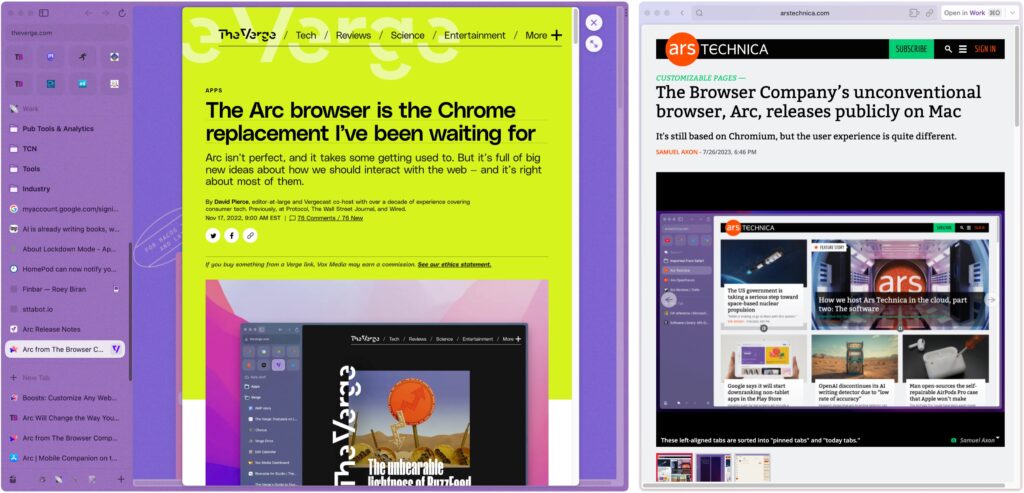
Arc understands that you often need to read a Web page only briefly. By default, when you are working in a pinned tab, if you click a link to another site, Arc opens it in a Peek—a sort of overlaid window (below left)—that you can close after reading or retain as a standard tab.
Another default setting opens links clicked in other Mac apps in Little Arc, a sidebar-free browser window that provides a focused look at a page without distracting you with everything else that’s open in Arc (below right). Again, when you’re done, you close the Little Arc window or open it in a Space.
Arc Allows Many Usage Styles
Like any good Mac app, it’s easy to use the mouse to get around, but Arc is wired with many easily discovered keyboard shortcuts that help increase productivity—it’s one of those apps that offers a lot to users who take the time to master a few nuances.
For example, to open a new tab in Arc, you can just click the New Tab item in the current Space’s sidebar to open the Command Bar and then type your URL or web search. Press Command-T also opens the Command Bar. Once you get used to using the Command Bar to search the Web, note that you can also type words in the name of an Arc command (try “downloads” to access the View Downloads command) to issue it quickly—this is often faster than looking for the command in Arc’s menus.
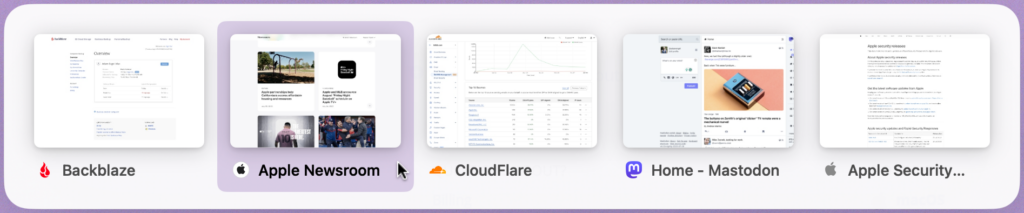
Another particularly useful keyboard shortcut is Control-Tab. Press it to switch back and forth between your two most recent tabs, or pause briefly to display a graphical switcher with the five most recent tabs—it works just like the Mac’s Command-Tab app switcher.
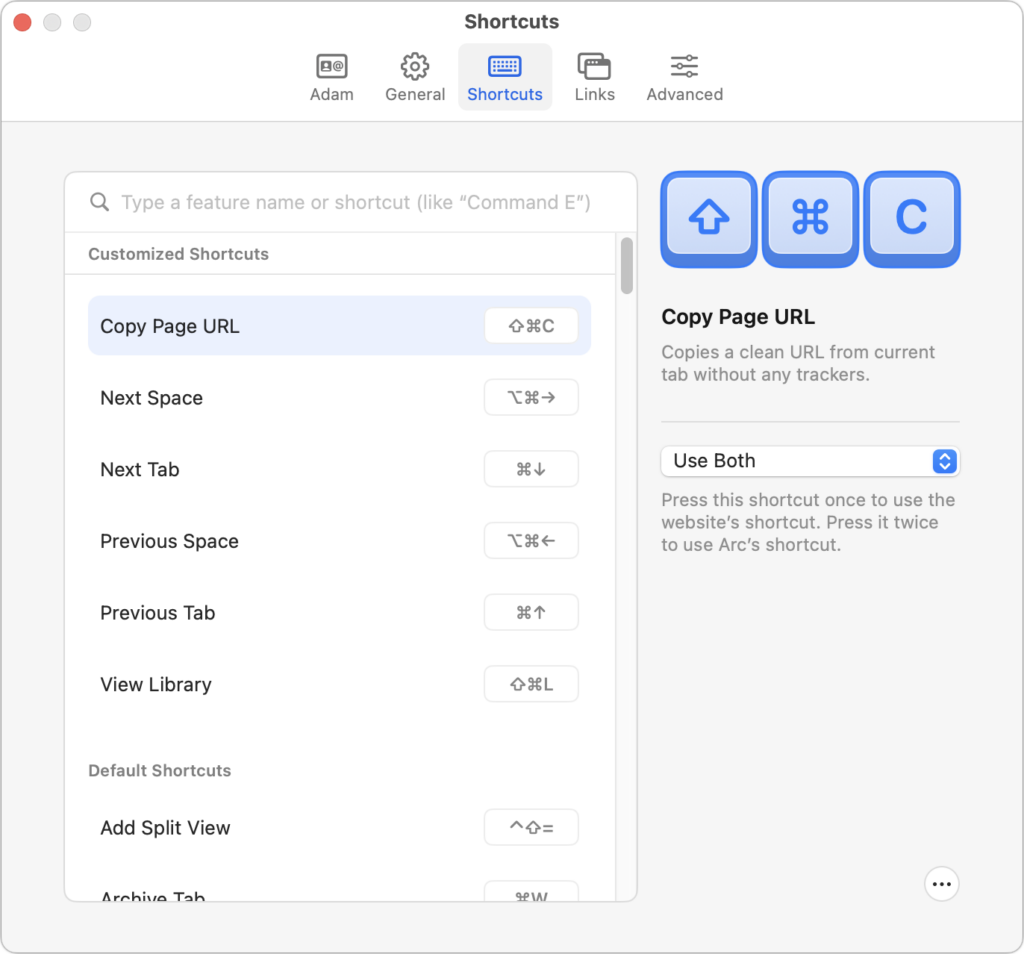
Arc offers many other clever shortcuts: One of our favorites is pressing Command-Option-N to open the Command Bar from within any app, generating a Little Arc window with the results. You can also press Command-Shift-C to copy the current page’s URL. This is great when your boss asks you to “toss me that URL in the chat” while in a video call. Bloggers will love pressing Command-Shift-Option-C to copy the current URL in Markdown format. And then there’s Command-Option-V, which creates a new tab from the contents of the clipboard, either by loading a URL or performing a search.
If Arc’s default keystrokes don’t work for you, you can customize them to be more memorable, with settings that control whether Arc or a website gets preference for conflicting shortcuts.
Arc Goes Beyond Basic Web Browsing
Arc has a few genuinely unusual features that we are enjoying experimenting with.
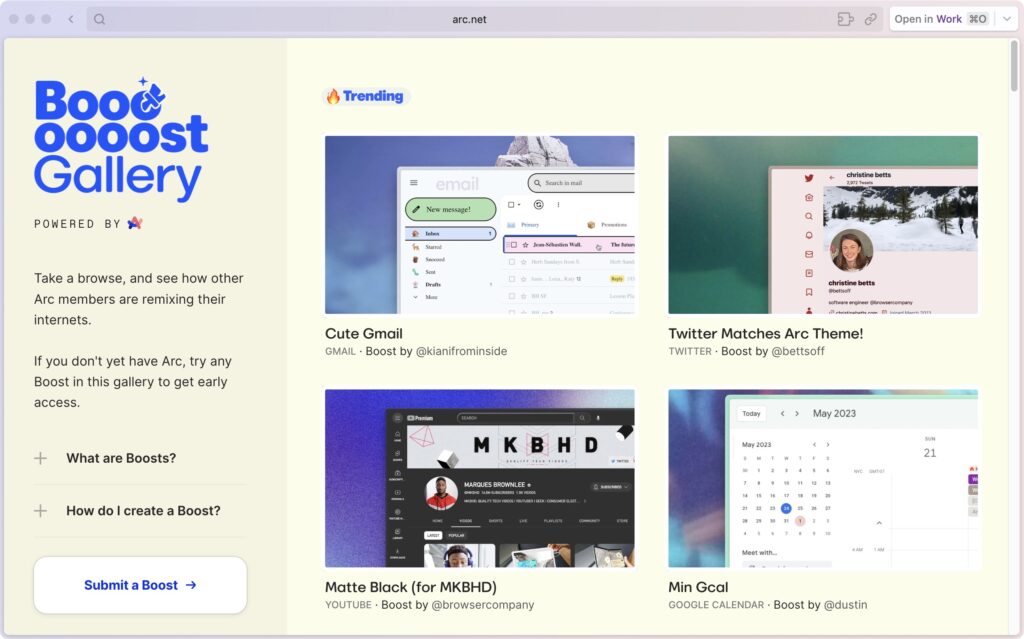
- Boosts: A graphical editor lets you change how any website looks whenever you load it, enabling you to tweak website colors, fonts, font sizes, and more. You can even delete particular interface elements. Along with fun uses and fixing sites with significant design lapses, Boosts are an accessibility win, letting users with vision issues adjust websites for easier reading. A Boost Gallery lets you see what others have done.
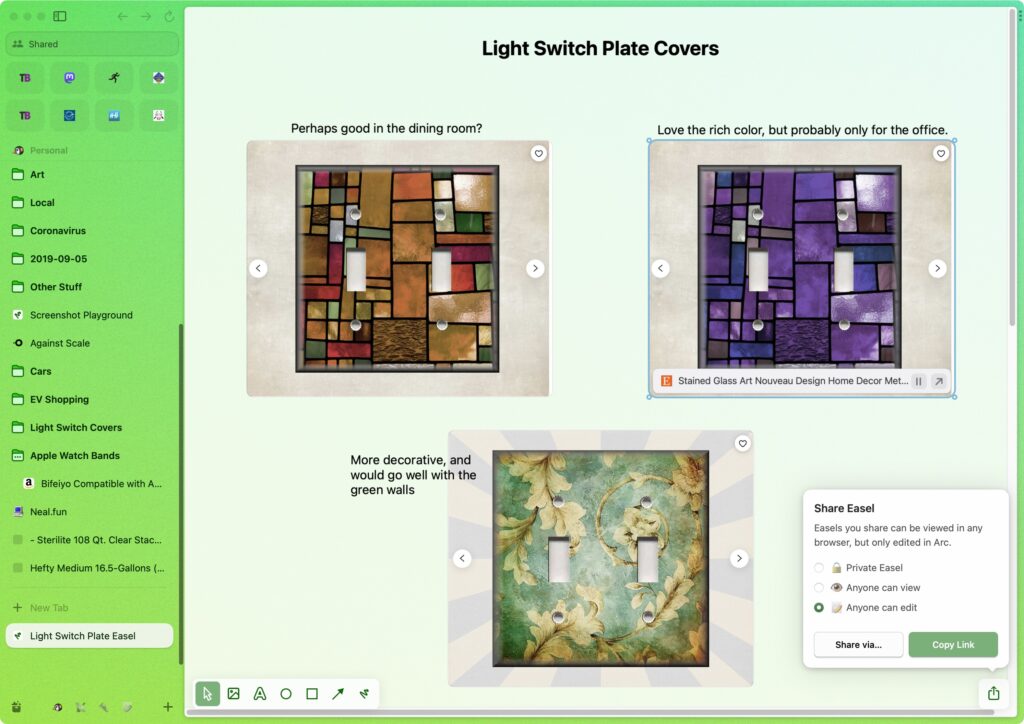
- Easels: A Capture command lets you take a snapshot of a portion of a Web page and add it to an Easel, a collaborative digital whiteboard you can share with other users. Captures can be static images that link back to their original pages—helpful for creating a mood board or for comparisons in online shopping—or HTML snippets that act like live windows into their original sites.
Getting Started with Arc
The main hurdle in adopting Arc is figuring out how best to use it. Be sure to import from your current browser when you first launch it, and then set up a few Spaces and organize your old bookmarks into pinned tabs. (Just drag a tab above the divider in the sidebar to pin it.) In a day or two, you should see how having your regularly used sites lined up in the sidebar for quick access saves time and makes you more productive.
Currently, Arc runs only on the Mac (macOS 12 Monterey and later), although The Browser Company makes an Arc Mobile Companion app for the iPhone and iPad. It’s not yet a full-fledged browser, but it syncs your Spaces and pinned tabs, making it easy to access your most-used sites on the go. A Windows version of Arc is in beta.
(Featured image based on an original by iStock.com/Bussarin Rinchumrus)
Social Media: An elegant new browser called Arc makes using the Web more fun, especially for people who use a lot of websites and Web apps. Arc offers many productivity features and a rethink of how users can best organize their many bookmarks and tabs.
