
Frustrated by System Settings? Use the View Menu or Search

Frustrated by System Settings? Use the View Menu or Search

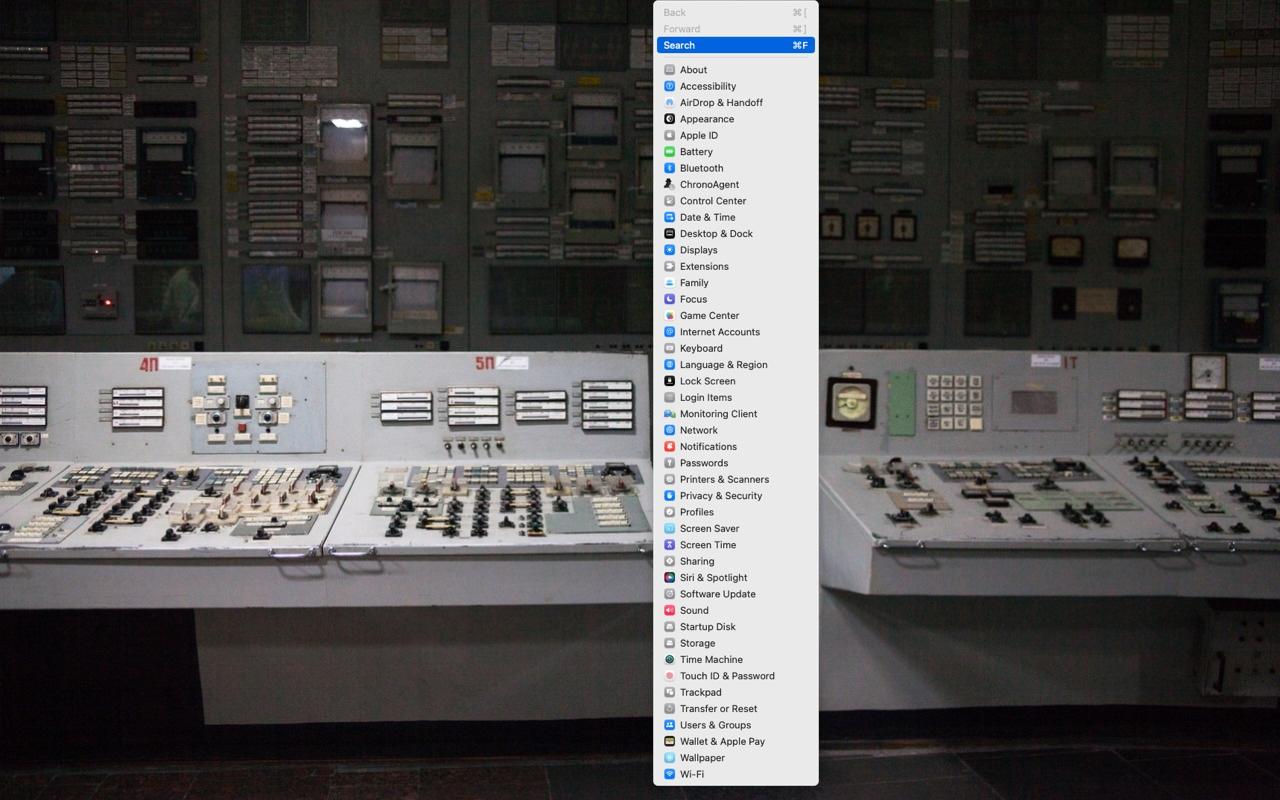
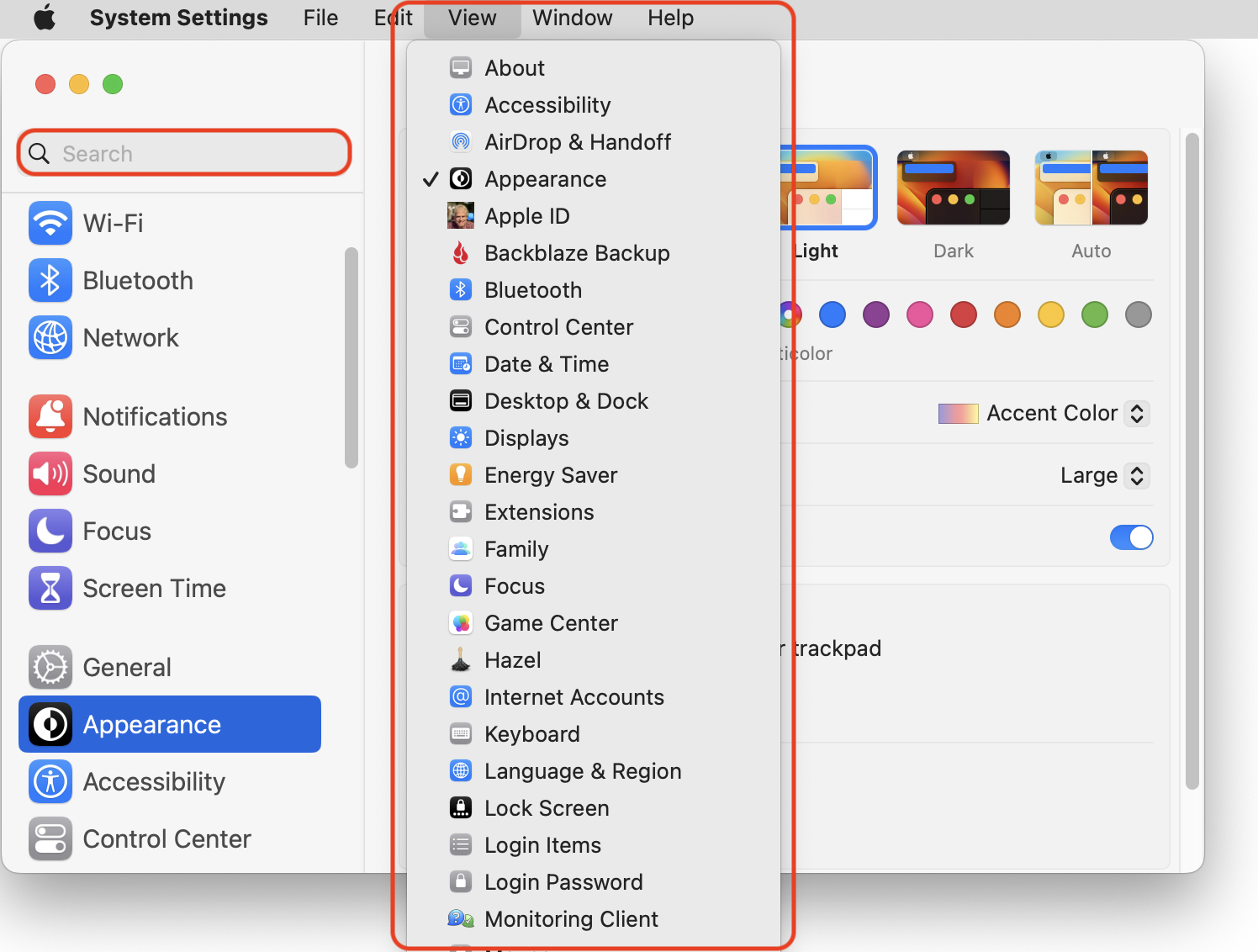
In macOS 13 Ventura, Apple replaced the creaky System Preferences with System Settings, which uses a more iOS-like interface. Many people find System Settings overwhelming, partly because they had memorized where to look in System Preferences (but System Settings has many other design flaws as well—it’s not your fault). We have two recommendations to make it more easily navigable. First, for an alphabetical approach, use the View menu, which lists the panes that way, along with the top-level items in the General settings pane. Second, make heavy use of the search field at the top of the System Settings sidebar—it’s the only way to find some deeply nested settings.
(Featured image based on an original by iStock.com/rootstocks)

Social Media: If you have trouble finding things in macOS Ventura’s System Settings app, you’re not alone. We have advice to help you navigate alphabetically or jump directly to a deeply nested setting.

More Insights

Tech Tip

Apple Refreshes Studio Display and Introduces Studio Display XDR

Apple has updated its Studio Display with an improved 12-megapixel Center Stage camera with Desk View support, two Thunderbolt 5 ports, and improved bass from its six-speaker system—all for the same $1,599 starting price. More significantly, Apple introduced the Studio Display XDR at $3,299, bringing professional-grade HDR technology to a broader audience at a much […]

Read More »
Tech Article

Apple Refreshes iPhone, iPad Air, and MacBook Lineups

Apple kicked off March 2026 with a flurry of product updates, refreshing its budget iPhone, mid-range iPad, and entire MacBook lineup. The announcements bring real upgrades across the board, with improved chips, faster storage, and better connectivity. iPhone 17e Adds MagSafe The iPhone 17e replaces last year’s iPhone 16e and maintains its $599 entry-level price. […]

Read More »
Tech Tip

Losing Messages or Calls? Look in the Unknown Senders/Callers Filter

In iOS, iPadOS, and macOS 26, Apple added an option in the Messages app to filter messages from unknown people and those marked as spam by the carrier. To enable filtering, open Messages, tap the Filter button in the upper-right corner, tap Manage Filtering, and turn on Screen Unknown Senders and Filter Spam. Once those […]

Read More »
Tech Article

Apple’s Focus Is Powerful but Unpredictable

Sometimes you just don’t want your phone to ring, chirp, or even vibrate. Maybe you’re asleep, in an important meeting, having dinner with family, meditating, playing a game, or simply enjoying some quiet time. Apple’s Focus feature on the iPhone, iPad, and Mac can silence those interruptions, but Focus is considerably more complex than the […]

Read More »
Tech Tip

iOS 26 Can AutoFill Credit Card Details

Sadly, not all websites and apps support Apple Pay, so we’ve become accustomed to manually entering our credit card information into fields, like animals. No longer! In iOS 26, the Wallet app now supports AutoFill. If you need to add a card—those set up with Apple Pay are already available—open Wallet, tap the three-dot menu […]

Read More »
Tech Article

How Does the New MacBook Neo Compare to the MacBook Air?

Apple has unveiled the MacBook Neo, a new entry-level laptop. With pricing starting at $599, a whopping $500 less than the MacBook Air, the MacBook Neo is positioned as an affordable computing option, particularly for families buying devices for K–12 students. Despite its low price, the MacBook Neo is a Mac, so it works like […]

Read More »

If you are here and not sure how to proceed, please call us at 626-286-2350, and we would be happy to help you find a solution to your needs.