
Energy Saver Can Shut Down Your UPS-Equipped Mac in a Power Outage


Energy Saver Can Shut Down Your UPS-Equipped Mac in a Power Outage

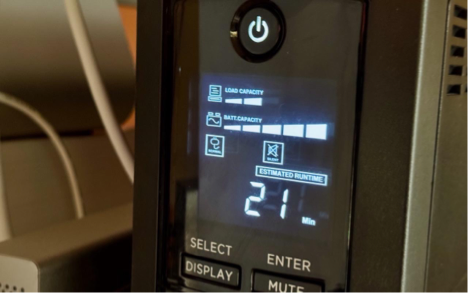
An uninterruptible power supply, or UPS, provides essential protection from power surges, spikes, brownouts, and outages. But if you’re not at your Mac when the power goes out, the UPS may run out of battery before you (or the power) return. Happily, if you connect your Mac to your UPS with a USB cable, macOS can detect the outage and shut your Mac down safely, regardless of what else is happening. Make sure open documents are saved whenever you step away from your Mac, or you could lose changes. In System Settings > Energy Saver > UPS Options, you can trigger the shutdown in three ways: after using the UPS battery for a specified amount of time, when the time remaining on the UPS battery hits a specific number, or when the UPS battery level drops below a particular percentage. There’s no harm in setting all three. Remember that it can take a minute or two for your Mac to shut down, so err on the short side for safety’s sake. Apple supports most UPS models from major manufacturers such as APC, CyberPower, and Tripp Lite.

(Featured image by Adam Engst)


Social Media: If you connect your Mac to your UPS with a USB cable, you can use Energy Saver to shut your Mac down automatically in the event of a power failure… before the UPS battery runs out.

More Insights

Tech Tip

Backups: Trust but Verify

It’s easy to assume your backup app—whether it’s Time Machine, Carbon Copy Cloner, Backblaze, Retrospect, or something else—is quietly doing its job. But it’s possible for a bug to corrupt backups or for a destination disk to fail silently, such that you can’t restore backed-up data. We’ve seen this happen! For peace of mind, set […]

Read More »
Tech Article

Don’t Miss Calls and Texts: How to Use New Phone and Messages Filtering

Spam is one of the many banes of modern existence. While we receive more email spam than anything else, interruptions from unwanted phone calls and text messages are even more annoying. Apple has added various features over the years to help control spam calls and messages, but none have completely solved the problem. The problem […]

Read More »
Tech Tip

Be Alert for Deepfake Phishing Scams

Phishing scams have entered a new, AI-powered phase and can now convincingly mimic real people. Attackers can generate fake voice or video deepfakes to impersonate CEOs authorizing urgent payments, IT staff requesting access, or family members needing help. If you receive a voice or video call from someone you know at an unknown number who […]

Read More »
Tech Article

A Few of Our Favorite Things: 2025 Tech Edition

The holidays may be just around the corner, but we field requests for tech gear recommendations year-round. Below you’ll find our suggestions, whether you’re shopping for an Apple tech enthusiast or simply looking to upgrade your own devices and accessories. Plenty of other excellent options exist—we’d love to hear about the peripherals that have worked […]

Read More »
Tech Tip

Charge Your MacBook with the Right Power Adapter

If you lose or break the power adapter that came with your MacBook Air or MacBook Pro, make sure to replace it with a charger that meets or exceeds the machine’s required wattage. A charger with too low a wattage may result in little or no charging (or even battery drain while working), and it […]

Read More »
Tech Article

iPadOS 26 Brings Mac-Like Multitasking to the iPad

When the iPad debuted, it was essentially a large iPhone. But classic productivity tools rapidly made their way to the iPad, and over the years, Apple has introduced multitasking features, such as Slide Over and Split View, to make it easier to work back-and-forth between apps—imagine writing in Pages while referring to a Web page, […]

Read More »

If you are here and not sure how to proceed, please call us at 626-286-2350, and we would be happy to help you find a solution to your needs.