
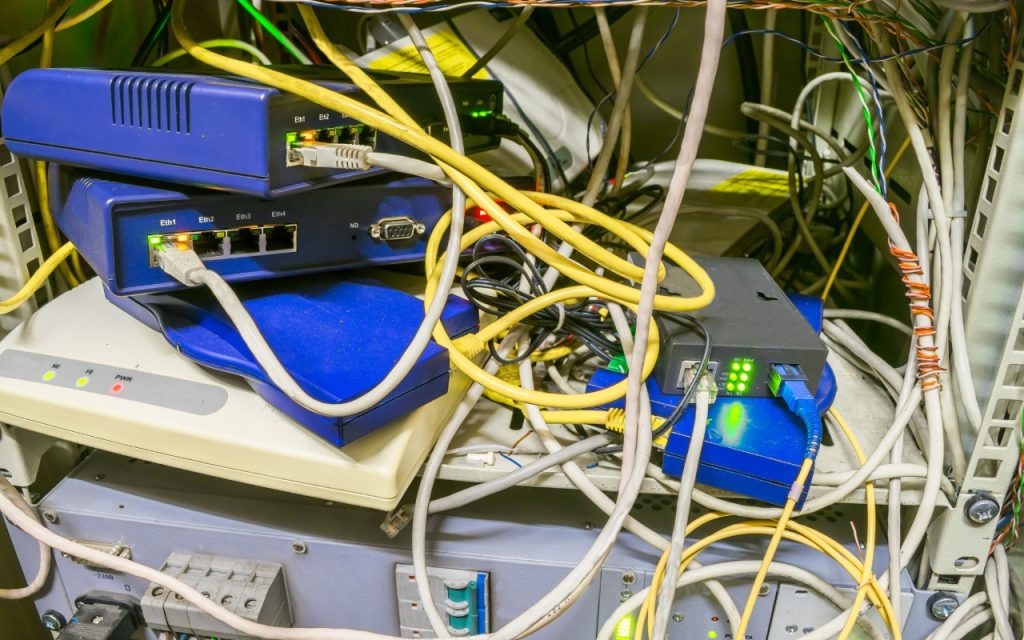
We’ve helped some clients recently with networking problems that seemed to be related to Internet connections. Most notable was intermittently slow Internet performance, causing the client to call their ISP to upgrade to a higher bandwidth connection with guaranteed throughput. But that extra monthly expense turned out to be unnecessary once we tracked the problem to a malfunctioning cable modem. Other problems we’ve seen involved occasional network dropouts (a bad Ethernet switch), flaky Wi-Fi access (a dying AirPort base station), and Internet slowdowns (squirrels gnawing on an outdoor coaxial cable).
Networking infrastructure is often the very definition of “out of sight, out of mind.” Modems, routers, and switches are usually hidden away in corners, closets, or machine rooms where few people notice them regularly. In addition, most users rely on Wi-Fi–equipped laptops, tablets, and smartphones and put no thought into how those Wi-Fi connections get their Internet access. Nor do many people realize the extent that physical cables—Ethernet, coaxial, fiber optic—are required.
Plus, because network cables and gear are so hidden, they tend to stay in place for years. For the most part, that’s fine. Most network devices other than those involving network-attached storage have no moving parts to fail, and cables that aren’t exposed to extreme environmental conditions or physical movement will last for a long time. But even solid-state electronic devices wear out, and while cables seldom degrade on their own, they’re easily damaged by movement. And never underestimate the damage mice and squirrels can inflict!
It’s worth making sure you or someone in your organization has a solid knowledge—and documentation—of your network infrastructure. For instance, can someone answer these questions:
- Where does your Internet connection come into the building?
- What cable modem or other router are you using? Do you own or rent it?
- Does your network rely on multiple Ethernet switches? Other networking gear?
- Is your Ethernet cabling Cat 5 (obsolete, limited to 100 Mbps), Cat 5e (capable of 1 Gbps), Cat 6 (up to 10 Gbps), Cat 6a (10 Gbps at longer distances), or Cat 6e (a meaningless marketing term)?
- Where is your Ethernet cable strung, and is it reasonably accessible? Can you isolate portions of your network for testing?
We also recommend putting an installation date sticker on the bottom of your network devices. That way, if you’re troubleshooting a problem like poor performance or intermittent connections, you can check quickly to see if any suspect devices are truly ancient. Even when older devices like cable modems seem to be working correctly, they may lack support for newer standards or firmware updates that provide better stability and throughput. We’ve also seen that issue with powerline networking adapters that are useful for extending connectivity to areas that can’t easily be served by Wi-Fi or Ethernet—newer adapters can provide significantly more performance. Plus, hardware does degrade over time—in particular, we’ve seen Ethernet switches and Wi-Fi routers get flaky as they age.
Finally, if solving a network problem requires new gear or cables, we strongly encourage purchasing quality hardware and cabling. Spending a little more upfront can save a lot of money in troubleshooting down the road, especially when it comes to pulling new cables.
(Featured image by iStock.com/klmax)
Social Media: If you’re suffering from Internet slowdowns and dropouts, remember that networking gear and cables can get flaky with age, so it’s worth checking your modems, routers, and switches when troubleshooting.
